How to Speed Up a Slow Computer Without Replacing Hardware
Managing a sluggish machine is a common challenge for many users, but mastering the art of speeding up a slow computer without replacing hardware can often breathe new life into an aging system. You do not need to spend money on new components to regain the snappy responsiveness you enjoyed when your device was first unboxed.
By systematically addressing software bottlenecks, optimizing background processes, and clearing out digital clutter, you can significantly improve your daily computing experience. This process is about efficiency and precision, ensuring that the resources you already have are working for you rather than against you.
Immediate Performance Fixes via Task Management
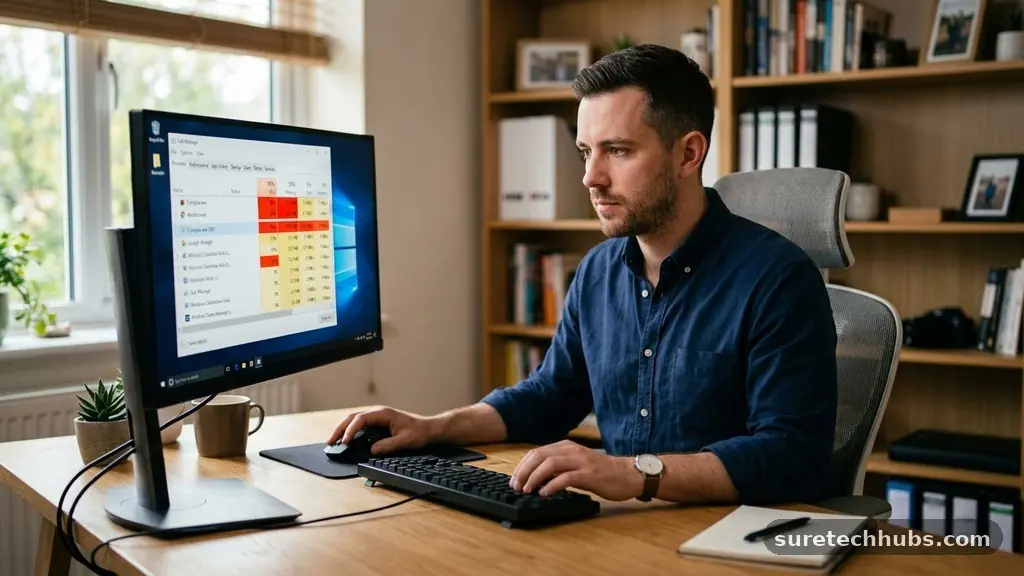
The most common reason for a sluggish system is an overload of processes running simultaneously. When you open your Task Manager on Windows or Activity Monitor on macOS, you are looking at the engine room of your computer.
Identify programs that consume high percentages of your CPU or memory and terminate those that are not essential. Many applications are designed to launch silently in the background, consuming system resources without providing any immediate value to your current task.
Identifying Resource-Heavy Processes
Look for applications that consistently hover at the top of your resource list while you are idle. If a web browser or a background utility is using 40% of your CPU while you aren’t doing anything, it is a prime candidate for removal or adjustment.
You should also check for “zombie” processes—programs that have crashed or failed to close properly—which continue to hog RAM. Force-quitting these items often provides an instant, noticeable boost in the responsiveness of your mouse and keyboard inputs.
Managing Startup Applications
Many programs force themselves to launch the moment you turn on your machine, which significantly extends boot times and clogs your memory. You can disable these via the Startup tab in your system settings. Aim to keep only essential drivers and security software in this list.
By reducing the number of programs that initiate at startup, you conserve your system’s initial processing power for the tasks you actually want to perform. This is one of the most effective methods for speeding up a slow computer without replacing hardware.
Optimizing Disk Storage and System Files
Hard drives that are nearly full operate significantly slower than those with plenty of free space. When your storage reaches capacity, the operating system struggles to find “scratch space” to manage temporary files and virtual memory.
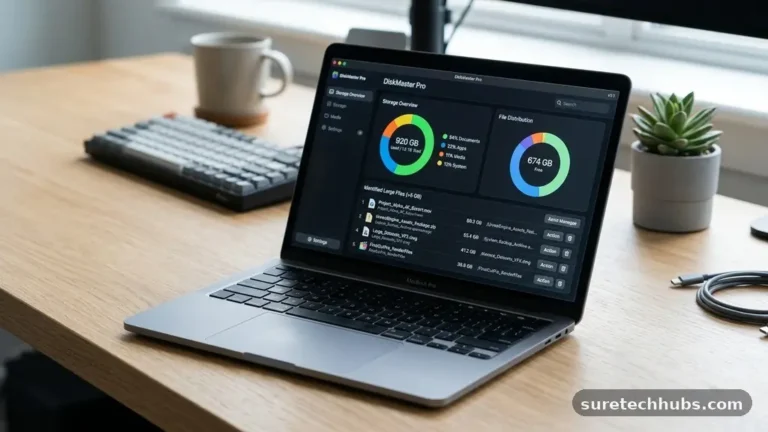
Aim to keep at least 15% of your total drive capacity free to ensure the system has room to breathe. Delete large files you no longer need, such as old video projects, high-resolution photos, or forgotten downloads.
Clearing Temporary and Junk Data
Operating systems generate thousands of temporary files that often remain on the drive long after they are useful. Using built-in tools like Disk Cleanup in Windows allows you to safely remove these remnants without damaging your personal files.
These utilities identify cache folders, log files, and installation leftovers that serve no ongoing purpose. Regularly performing this maintenance prevents digital rot from accumulating in your system directories.
The Role of Drive Fragmentation
On older mechanical hard drives, files can become scattered across different physical sectors, forcing the drive head to work harder to read data. While modern Solid State Drives (SSDs) do not require traditional defragmentation, they do benefit from the TRIM command to maintain performance.
You can find more technical details on how your specific storage hardware handles data management through the official Microsoft documentation on disk management. Running these tools ensures that your storage access times remain as low as possible.
Software Updates and Driver Maintenance
An outdated operating system or set of drivers can create compatibility issues that lead to system instability and poor performance. Developers frequently release patches that optimize how software interacts with your hardware components.
Ensuring your system is fully updated allows it to take advantage of these efficiency improvements. Ignoring these updates can lead to security vulnerabilities and inefficient resource allocation.
Updating Device Drivers
Drivers act as the translators between your hardware and your software. If your graphics card or chipset drivers are outdated, your computer may struggle to render interfaces or manage data flow effectively.
Visit the official manufacturer’s website for your specific hardware components to download the latest stable versions. Avoid third-party “driver updater” software, as these tools often install unnecessary bloatware that further degrades performance.
Managing System Updates
While updates can sometimes feel intrusive, they are essential for long-term health. Configure your system to download and install updates during hours when you aren’t using the machine to prevent interruptions.
If you are on an older version of your operating system, consider if a clean installation might be better than an upgrade. A fresh start clears out years of accumulated registry errors and conflicting settings that are difficult to resolve manually.
Visual Effects and Interface Settings
Modern operating systems are packed with animations, shadows, and transparency effects that look appealing but demand significant graphical processing. If you are working on an older machine, these flourishes are often a luxury you cannot afford.
Disabling these visual effects can make your computer feel significantly more responsive. This doesn’t change what your computer can do, but it changes how quickly it responds to your commands.
Adjusting Performance Settings
In your system’s advanced settings, you can often find a toggle to prioritize performance over visual appearance. Turning off features like window animations, fade-in menus, and desktop wallpapers can free up a surprising amount of video memory.
This is especially helpful if you are using an older integrated graphics chip that struggles to keep up with the demands of a high-resolution interface. The change may feel jarring at first, but the increase in speed is usually worth the trade-off.
Reducing Background Transparency
Transparency effects require constant recalculation of what lies beneath a window, which is a constant drain on your GPU. You can usually turn these off in your accessibility or personalization settings.
By setting your interface to a solid color, you reduce the workload on your processor. This simple tweak is a classic technique for speeding up a slow computer without replacing hardware.
Comparing Performance Impact by Tweak
Different optimizations yield different results depending on the age and state of your system. Below is a breakdown of how common interventions impact your daily experience.
| Optimization Task | Typical Impact | Effort Required |
|---|---|---|
| Disabling Startup Apps | High (Boot time) | Low |
| Clearing Drive Space | Medium (File access) | Medium |
| Reducing Visual Effects | Medium (Responsiveness) | Low |
| Updating Drivers | High (Stability) | Medium |
| Uninstalling Bloatware | High (System overhead) | High |
Removing Bloatware and Unnecessary Software
Over time, most computers collect a graveyard of applications that you installed once and never touched again. These programs often leave behind background services that run continuously, eating up RAM and CPU cycles.
Go through your list of installed programs and be ruthless. If you haven’t used an application in the last three months, it is likely safe to remove it.
Identifying Hidden Background Services
Some software installs “update checkers” or “cloud synchronization” tools that run 24/7. These tools often have their own settings menus that allow you to disable background operation.
If you don’t need a program to notify you of updates or sync files every second, turn those features off. Every service you disable is one less thing competing for your processor’s attention.
Safe Removal Strategies
Always use the official uninstaller provided by the software or the system’s “Add or Remove Programs” utility. Manually deleting folders can leave behind registry entries and orphan files that confuse the system.
If you want to be thorough, use a reputable uninstaller tool that scans for leftover files after the main program is gone. Cleaning up these digital footprints is a vital step in the process of speeding up a slow computer without replacing hardware.
Frequently Asked Questions
Is it safe to delete files from the Windows folder?
No, you should never manually delete files from the system folders. Use only the built-in Disk Cleanup or storage settings to safely remove temporary files.
How much free space should I keep on my drive?
It is generally recommended to keep at least 15% to 20% of your drive capacity empty. This allows the OS to manage swap files and temporary data efficiently.
Do I need to reinstall my operating system?
A clean install is a last resort if your system is severely compromised or unstable. Most performance issues can be resolved through the optimization steps mentioned above.
Will disabling visual effects break my apps?
No, disabling animations and transparency only changes the appearance of the user interface. It will not affect the functionality of your applications or your files.
Can malware be the reason my PC is slow?
Yes, malicious software often runs hidden processes that consume massive resources. Running a scan with a trusted security tool is a standard part of performance tuning.
Conclusion
Improving your machine’s performance is a manageable process that rewards patience and attention to detail. By carefully curating your startup list, managing storage, and trimming unnecessary visual flourishes, you can achieve a noticeable difference in how your computer feels. Remember that consistency is key; performing these maintenance tasks periodically keeps your digital workspace running efficiently.
You now have the knowledge required for speeding up a slow computer without replacing hardware, ensuring your current device serves you well for years to come. Take the first step today by reviewing your startup apps and reclaiming your system’s resources. Your computer will thank you with a faster, more reliable performance.