How to Organize Your Digital Files for Easier Access
Mastering the art of organizing your digital files for easier access transforms your daily workflow from a chaotic search into a streamlined process. Many people struggle with cluttered desktops and overflowing downloads folders, losing precious time hunting for documents that should be seconds away. By implementing a consistent structure and a few smart habits, you can regain control of your virtual workspace.
This approach isn’t about perfection; it’s about creating a system that works for your specific needs, allowing you to locate any file with minimal effort. You will find that a tidy digital environment reduces mental fatigue and significantly boosts your overall productivity throughout the work week.
Establishing a Logical Folder Hierarchy
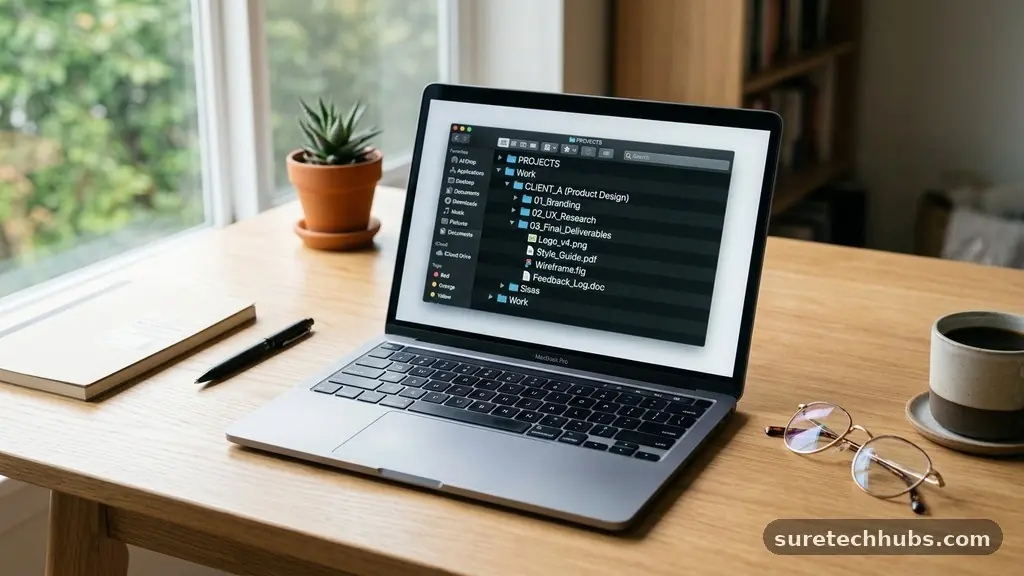
The foundation of any effective system is a robust folder hierarchy that mirrors how your brain naturally categorizes information. Avoid creating a flat list of hundreds of files in your documents folder, as this makes browsing nearly impossible. Instead, start with a few high-level “parent” folders that represent the major areas of your life or professional responsibilities.
For instance, you might have top-level folders for Personal, Work, Finances, and Archives. Within each of these, create sub-folders that drill down into more specific topics, such as “Work > Projects > 2024 > Marketing.”
Consistency is the secret ingredient to ensuring this system remains functional over time. If you start a project today and name the folder “Q1 Report,” make sure you follow that same naming convention for “Q2 Report” and “Q3 Report.” When you fail to maintain a consistent structure, you inevitably end up with “orphaned” files that don’t belong anywhere.
Think of your folder structure like a physical filing cabinet; you wouldn’t throw a tax receipt into a drawer labeled “Recipes.” Keep your hierarchy shallow—try to avoid nesting folders more than four or five levels deep, as this makes the path to a file tedious and difficult to navigate.
Implementing Standardized Naming Conventions
Once your folders are in place, the way you label your individual documents becomes the most critical factor for searchability. A file named “document1.pdf” is virtually invisible to a search tool, whereas “2024-05-12_Invoice_ClientName.pdf” provides immediate context. Use a format that includes the date, the content type, and a specific identifier.
The ISO 8601 date format—YYYY-MM-DD—is particularly useful because it ensures that files sort chronologically when listed by name. If you have multiple versions of a document, always use a clear versioning suffix like “_v1,” “_v2,” or “_final.”
Avoid using vague or repetitive terms that don’t help you distinguish one file from another. If you search for “meeting notes,” you might end up with dozens of hits, but searching for “2024-03-10_TeamMeeting_Notes” narrows the results instantly. Keep your filenames concise but descriptive, and steer clear of special characters that might cause sync errors between different operating systems.
Spaces are generally fine in modern systems, but some users prefer underscores or hyphens to ensure compatibility across all platforms. You can find more information on data management best practices through the National Archives and Records Administration guidelines.
Managing Your Downloads and Desktop
The desktop and the downloads folder are the two most common “dumping grounds” that lead to digital clutter. Many of us save files to the desktop for temporary access but forget to move them to their permanent homes. Treat your desktop as a workspace rather than a storage unit; at the end of every week, clear it entirely.
If you have files there that you need to keep, move them into your established folder hierarchy. If you don’t need them, delete them or move them to a temporary “to-sort” folder.
Your downloads folder is another frequent source of digital chaos that requires a regular maintenance schedule. Because browsers automatically dump everything here, it quickly becomes a graveyard of installers, temporary PDFs, and images you only looked at once. Set aside ten minutes every Friday to scan your downloads folder and perform a quick cleanup.
Move the files you want to keep into their proper folders and delete the rest without hesitation. If you aren’t sure if you need a file, ask yourself if it would be easy to download or create again; if the answer is yes, delete it.
Utilizing Search and Metadata Features
Modern operating systems have powerful built-in search tools that make organizing your digital files for easier access much simpler than it used to be. Windows Search and macOS Spotlight are designed to index your files based on content, not just the filename. You can use these features to find documents even if you’ve forgotten exactly where you saved them.
To make this work, ensure your files are saved in indexed locations and use descriptive text within the documents themselves. When you label files well, the OS can find them even faster.
Metadata is the hidden information attached to your files, such as creation dates, tags, and author names. Both Windows and macOS allow you to add “tags” to files, which can be a game-changer for cross-referencing. For example, you could tag a file as “Important,” “ProjectX,” or “TaxRelated,” allowing you to find everything associated with that tag regardless of which folder it is in.
While manual tagging takes time, it is incredibly effective for managing large volumes of diverse documents. Experiment with these built-in tools before investing in third-party organization software.
Comparing Storage and Backup Strategies
Choosing the right storage solution is essential to keeping your files safe and accessible. You need to balance convenience with security, ensuring that your organization system doesn’t fall apart if your computer crashes.
Cloud storage services offer a way to keep your files synced across multiple devices, which is helpful if you work from both a laptop and a phone. However, you must maintain your folder structure in the cloud just as you would on your local drive to avoid a different kind of clutter.
| Storage Type | Primary Benefit | Best Use Case |
|---|---|---|
| Local Drive | High speed, no internet required | Large project files, sensitive data |
| Cloud Storage | Access from anywhere, automatic sync | Documents, photos, collaboration |
| External HDD | Massive capacity for low cost | Long-term archives, backups |
| Network Attached Storage | Centralized home/office access | Shared files for multiple users |
Regardless of where you store your files, the “3-2-1” backup rule is the industry standard for data protection. Keep three copies of your data, stored on two different types of media, with one copy kept off-site. Cloud storage counts as your off-site copy, while an external hard drive serves as one of your local copies.
This ensures that even if you accidentally delete a folder or your computer suffers a hardware failure, your organized efforts remain intact. Never rely on a single location for your important documents, as digital decay or drive failure can happen without warning.
Maintaining Your Digital Hygiene
Organization is not a one-time project; it is an ongoing practice of digital hygiene. Much like cleaning your physical home, your digital space requires routine attention to prevent clutter from creeping back in. Schedule a recurring calendar event for a “digital audit” once a month.
During this time, look for duplicate files, empty folders, and outdated versions of documents that are taking up space. It is much easier to spend thirty minutes a month decluttering than it is to spend an entire weekend digging through years of accumulated mess.
Developing a mindset of “touch it once” can significantly reduce the amount of time you spend managing files. When you create a new document, save it in the correct folder immediately rather than dumping it on the desktop. When you receive an email attachment, save it directly to the intended destination rather than letting it sit in your inbox.
This proactive approach prevents the initial accumulation that leads to the “I’ll do it later” trap. Over time, these small actions become habits that keep your system running smoothly without requiring a major effort.
Addressing Digital Photo Organization
Photos often represent the most difficult category of digital files to manage because they accumulate rapidly and lack descriptive names. To organize your photos, start by importing them into a dedicated management application that supports facial recognition and geotagging.
These tools can handle the heavy lifting of sorting by date and location, which is far more efficient than manual filing. Once the software has organized the bulk of your library, you can create manual albums for specific events or themes, like “Summer Vacation 2023” or “Family Holiday.”
- Delete blurry, dark, or accidental photos immediately after taking them.
- Use a consistent naming format for high-priority photos, such as YYYY-MM-DD_EventName.
- Group photos into yearly folders to keep your library from becoming overwhelming.
- Back up your photo library to at least two distinct cloud services to ensure against data loss.
- Review your “favorites” album regularly to keep only the best shots of each event.
If you have thousands of unsorted photos, don’t try to organize them all at once. Start by focusing on the most recent year, then work your way backward as time permits. Treat your photo organization as a long-term project rather than a sprint.
By focusing on the most meaningful images first, you ensure that your most cherished memories are easily accessible while you slowly tackle the backlog of less important snapshots. Remember that the goal is to make your photos enjoyable to look at, not to create a perfectly curated archive of every single frame you have ever captured.
Frequently Asked Questions
What is the most effective way to handle duplicate files?
The best way to handle duplicates is to use a dedicated duplicate file finder tool. These programs scan your drives for files with identical checksums, allowing you to safely delete the copies while keeping the original. Manually finding duplicates is time-consuming and prone to error, so automated software is generally the most efficient path.
How do I decide what to keep and what to delete?
Ask yourself if the file has any long-term utility or sentimental value. If you haven’t opened a document in more than two years and it isn’t legally required for taxes or property records, it is likely safe to delete. When in doubt, move questionable files to an “Archive” folder and revisit them in six months; if you haven’t needed them by then, delete them permanently.
Is it better to organize by project or by file type?
Organizing by project is usually more effective for professional work, as it keeps all relevant resources in one place. Organizing by file type, such as having a folder for “PDFs” and another for “Images,” often leads to a fragmented system where it’s hard to see the context of your work. Grouping by project or objective makes your files much easier to find when you are actually working.
How can I stay motivated to keep my files organized?
Focus on the immediate relief you feel after cleaning a specific folder. The time you save in the future by not having to hunt for files is a powerful motivator. If you find the task tedious, try listening to music or a podcast while you work, turning your digital cleanup into a relaxing, low-stress ritual rather than a chore.
Should I use tags or folders for better access?
The best approach is to use both. Folders provide a clear, hierarchical structure that is easy to browse, while tags offer a flexible way to cross-reference files that belong to multiple categories. Use folders for the primary location of a document, and apply tags for secondary attributes that help you filter your search results later.
Conclusion
Organizing your digital files for easier access is a journey toward a more peaceful and productive digital life. By setting up a logical folder structure, establishing consistent naming conventions, and committing to regular maintenance, you create a system that serves you rather than adds to your stress. You don’t have to overhaul your entire computer in a single day; small, consistent efforts will yield the most sustainable results over time.
Start by clearing your desktop today and creating one main folder for your most important projects. Once you experience the clarity of a well-organized system, you will likely find that the habit naturally carries over into other parts of your digital environment, making your daily interactions with technology much more rewarding.