A Beginner’s Guide to Software Updates and Security Patches
Keeping your digital life safe starts with a solid grasp of how to manage your technology. This beginner’s guide to software updates and security patches provides the essential knowledge you need to protect your devices from emerging digital threats. By understanding how these small file changes work, you can ensure your personal information remains private and your hardware functions at its best.
When you see a notification on your phone or computer, it is rarely just a cosmetic change. Software updates are released to fix bugs, improve performance, and close security holes that hackers might otherwise exploit.
A patch is a specific type of update designed to fix a single, immediate problem, often related to a newly discovered vulnerability. You should view these installations as a vital part of your routine digital hygiene.
The Core Differences Between Updates and Patches
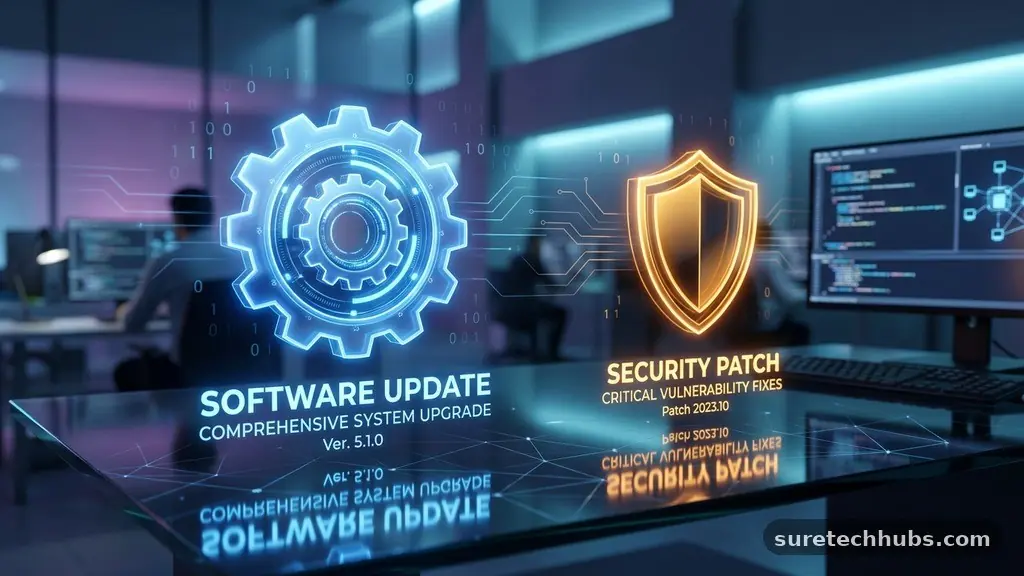
Many people use the terms interchangeably, but they serve distinct purposes in your computing experience. A software update is generally a comprehensive package that might include new features, interface improvements, and stability enhancements. It is a broad refresh of the application or operating system meant to keep it current with modern standards.
A patch, by contrast, is more like a surgical strike. Developers release a patch specifically to fix a known flaw or security weakness that was discovered after the initial software release. You might receive a patch for your email client or web browser without seeing any visible changes to how the program looks or feels.
Think of an update as a seasonal renovation of a house, while a patch is a quick repair to a leaky pipe. Both are necessary to keep the structure standing. Ignoring these, especially security-focused patches, leaves your device exposed to malicious actors who actively look for unpatched systems to compromise.
Why Ignoring Notifications Creates Risks
When you delay an update, you are essentially leaving a door unlocked in your digital home. Cyber security experts frequently point out that most successful attacks occur because users failed to install available fixes. These vulnerabilities are often documented in public databases, giving attackers a roadmap to exploit outdated software.
Hackers do not always target high-profile corporations. They often use automated scripts to scan the internet for common devices, such as routers or older laptops, that have not been updated. If your device is running software from several years ago, it likely contains dozens of documented weaknesses that are easy to bypass.
Updating your device helps to maintain its longevity and reliability. Beyond security, developers often optimize their code to use less battery or memory. If you find your phone slowing down, it is often a sign that you are running an outdated operating system that struggles to keep up with modern network demands.
Understanding Automatic Updates
Modern devices are designed to make the update process as invisible as possible. Enabling automatic updates is the single most effective way to ensure you are protected without having to remember technical schedules. Most operating systems, including Windows, macOS, Android, and iOS, offer a setting to handle these tasks in the background.
When you turn on automatic updates, the system checks for new files during low-usage hours, such as the middle of the night. It downloads the necessary data and prepares it for installation, often requiring only a quick restart to finalize the process. This takes the guesswork out of maintenance for the average user.
However, some users prefer manual control to avoid potential issues with new software versions. If you choose to manage updates manually, you must commit to a schedule. Check your device settings at least once a month to see if any critical security fixes are waiting for your approval.
How to Check for Pending Updates
Finding your update status is usually a straightforward task within your settings menu. On an iPhone or iPad, you simply navigate to Settings, tap General, and select Software Update to see if your version is current. Android devices have a similar path, often found under Settings, System, and then System Update.
For computers, the process is equally accessible. Windows users can open the Start menu, type “Check for updates,” and let the system scan the Microsoft servers. On a Mac, you access System Settings and look for the General tab to find software information.
If you are unsure about the state of your software, you can visit the official Cybersecurity and Infrastructure Security Agency website for general tips on maintaining device integrity. They provide excellent resources on how to identify when software has reached its end-of-life status. Using software that is no longer supported by the manufacturer is one of the biggest risks you can take.
Comparing Update Methods
Different platforms handle the deployment of code in unique ways. The following table highlights the common approaches to keeping your technology secure and functional across different environments.
| Method | Pros | Cons |
|---|---|---|
| Automatic | High security, zero effort | Potential for unexpected downtime |
| Manual | Full control over timing | Easy to forget or delay indefinitely |
| Enterprise/Admin | Centralized, managed security | Requires professional IT oversight |
Managing End-of-Life Software
Every piece of software has a lifecycle, and eventually, the developer stops providing updates for it. This is known as “end-of-life” or “end-of-support” software. When this happens, no more security patches will be issued, even if a major vulnerability is discovered.
You should stop using such software as soon as possible. If an old application is essential to your work, look for a modern alternative that receives regular maintenance. Continuing to use obsolete programs on a computer connected to the internet is a significant security liability for your entire home network.
Identifying these programs can be tricky for beginners. If a program hasn’t asked for an update in years, or if the developer’s website no longer exists, it is likely time to uninstall it. Transitioning to current software ensures you have access to the latest security features.
Common Questions About System Maintenance
What is the difference between a patch and a version upgrade?
A version upgrade, such as moving from Windows 10 to Windows 11, usually involves significant changes to the operating system’s features and interface. A patch is a smaller, focused update designed to fix specific bugs or security flaws within your current version.
Do I need to update my router?
Yes, your router is the gateway to your home network and is a prime target for attackers. You should log into your router’s administrative panel periodically to check for firmware updates, which are essentially the “patches” for your networking hardware.
Can updates cause my device to crash?
While rare, updates can occasionally cause compatibility issues with older hardware or specific applications. This is why it is important to back up your critical data regularly so that you can recover your files if an installation goes wrong.
How often should I check for updates?
If you have automatic updates turned on, you don’t need to check manually at all. If you prefer manual control, checking once a month is a good habit, though you should check immediately if you hear news about a major security vulnerability in your software.
Are third-party update checkers safe?
It is generally better to stick to the update tools provided by the software manufacturer itself. Third-party “driver updater” tools can sometimes be bundled with unnecessary software or even malware, so avoid them unless they come from a trusted, well-known source.
Best Practices for Staying Secure
To maintain a healthy digital footprint, you should adopt a few simple habits. First, always keep your operating system and web browser fully updated, as these are the most common entry points for threats. Second, use strong, unique passwords for every account to add a second layer of defense.
You should also be cautious about where you download files. Only install software from official websites or verified app stores to ensure the code hasn’t been tampered with. If you receive an unexpected email claiming you need to “update your account” by clicking a link, delete it immediately, as this is a common phishing tactic.
Finally, remember that security is an ongoing process rather than a one-time setup. Staying informed about the basics of digital safety will serve you well for years to come. By following this beginner’s guide to software updates and security patches, you are taking a proactive step toward a safer and more stable computing experience.
Conclusion
Managing your digital environment does not have to be a source of stress. By embracing automatic updates and staying mindful of the software you use, you can significantly reduce your risk of falling victim to cyber threats. These small, periodic actions are the best way to safeguard your personal data and keep your technology running reliably.
As you become more comfortable with these processes, you will find that a secure device is also a more efficient one. Remember that every update is an opportunity to improve your protection and performance.
If you have questions about your specific devices, start by checking the manufacturer’s official support pages. Your commitment to staying updated is a vital part of your digital life, ensuring that you can explore the online world with confidence and peace of mind.