Smartphone Battery Settings That Can Improve Battery Life
Managing your power consumption effectively is the most reliable way to ensure your device stays powered throughout the day. By adjusting the specific smartphone battery settings that can improve battery life, you can significantly reduce the drain caused by background processes and display requirements. These manual tweaks often provide more immediate results than simply buying a new battery or carrying a bulky power bank.
Whether you use an Android device or an iPhone, understanding how your operating system handles energy usage allows you to take control of your hardware’s longevity. This article explores the essential configurations that help you get the most out of every single charge.
Identifying High-Drain Applications
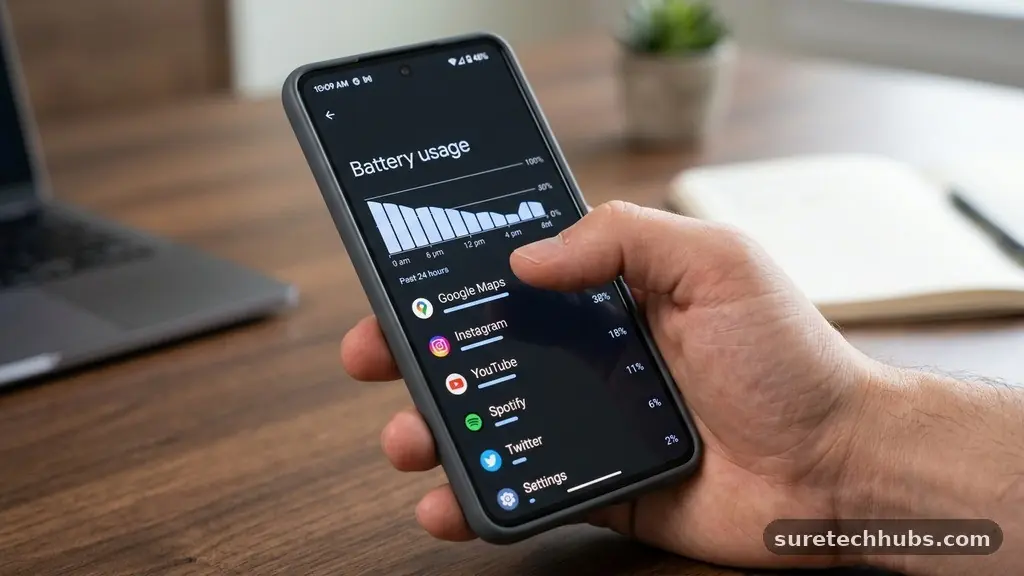
The most effective way to start saving power is to identify which specific software is consuming the most electricity. Both iOS and Android provide detailed usage statistics that break down energy consumption by individual apps.
You should navigate to your battery usage menu to see a list of programs ranked by their percentage of total power draw. Often, you will find that social media apps or navigation tools are the primary culprits behind rapid depletion.
Once you have identified these high-drain apps, you can take action to limit their activity. Many modern operating systems allow you to restrict background activity for specific applications, preventing them from syncing data or refreshing content while you aren’t actively using them.
This is one of the most impactful smartphone battery settings that can improve battery life over the long term. If an app doesn’t need to send you real-time notifications, disabling its background refresh capability is a smart move.
You should also check for apps that have been running in the background for hours without being opened. Sometimes, a process gets stuck or fails to close properly, leading to a constant drain on your processor.
Force-closing these unresponsive applications can provide an immediate boost to your remaining power levels. Regularly reviewing this menu ensures that you aren’t unknowingly feeding power to software you rarely use.
Optimizing Display and Brightness Configurations
The display is almost always the single largest consumer of energy on any modern mobile device. High resolution and high refresh rates make for a beautiful experience, but they come at a significant cost to your total runtime.
Adjusting your screen brightness is the fastest way to save energy when you are running low. Most users find that manual brightness set to roughly 50% is perfectly adequate for indoor environments, saving a massive amount of power compared to maximum settings.
Beyond manual brightness, you should explore adaptive settings that manage your screen’s behavior automatically. Enabling “Auto-Brightness” allows the device to use light sensors to dim the display in dark rooms, which is much more efficient than keeping the backlight at a constant, high level.
Furthermore, if your phone supports variable refresh rates, consider capping the refresh rate at 60Hz. While 120Hz provides smoother scrolling, it forces the hardware to work twice as hard to render images, which drains the internal cell much faster.
Another useful setting involves the screen timeout duration. Many devices default to a two-minute timeout, which leaves the screen glowing long after you have finished reading a notification or checking a message.
Changing this to 30 seconds or one minute ensures that your screen turns off much sooner when the device is sitting idle. This small change accumulates to significant savings over the course of a busy workday.
Utilizing Built-in Power Saving Modes
Every major smartphone manufacturer includes a dedicated power-saving mode designed to extend battery life when you are away from a charger. These modes act as a comprehensive “quick fix” by automatically adjusting several background settings at once.
When you toggle this on, your phone will typically limit CPU performance, reduce screen brightness, and restrict background data syncing. It is a powerful tool to have in your arsenal when you are down to your last 20 percent.
You should understand that these modes are not meant to be left on permanently, as they can slow down your device’s responsiveness. However, they are excellent for emergency situations where you need to preserve your phone for essential communication.
Some devices even offer an “Ultra Power Saving” mode that restricts your phone to only the most basic functions, such as calls and SMS. This can keep a phone alive for several extra hours when you are in a remote area or during a power outage.
It is helpful to check if your device allows for scheduled power saving. Some versions of Android allow you to set the mode to trigger automatically once the battery hits a certain percentage threshold.
This proactive approach prevents the device from dying unexpectedly, as the system takes charge before you even notice the drop. By letting the OS handle the optimization, you ensure that you aren’t caught off guard by a sudden shutdown.
Managing Connectivity and Radio Usage
Wireless radios, including Wi-Fi, Bluetooth, and cellular data, are constant users of power because they are always scanning for signals. When you are in an area with poor cellular reception, your phone will work double-time to maintain a connection, which causes the battery to drain at an accelerated rate.
If you know you are in a dead zone, switching your phone to Airplane Mode is a highly effective way to stop this unnecessary drain. You can then toggle Wi-Fi back on if you need to access the internet.
Bluetooth is another common source of hidden power consumption. Many users leave Bluetooth enabled even when they aren’t using wireless headphones or smartwatches.
While modern Bluetooth standards are quite efficient, the constant searching for nearby devices still consumes a small but measurable amount of energy. If you aren’t currently connected to any peripherals, turning off Bluetooth in your quick settings menu is a simple habit that adds up.
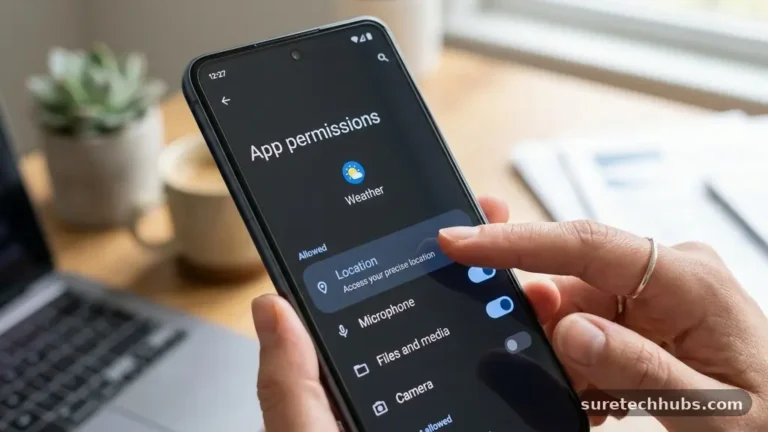
Location services also rely on a combination of GPS, Wi-Fi, and cellular data to track your position. Certain apps request location access far more often than necessary, which keeps your GPS radio active in the background.
You should audit your location permissions regularly to ensure that only essential apps have constant access to your coordinates. Setting these to “Only while using the app” is a much more battery-friendly configuration than allowing persistent tracking.
Understanding Battery Health and Charging Habits
The long-term capacity of your battery is determined by how you charge it over time. Lithium-ion cells are sensitive to heat and extreme voltage levels, which can lead to chemical degradation.
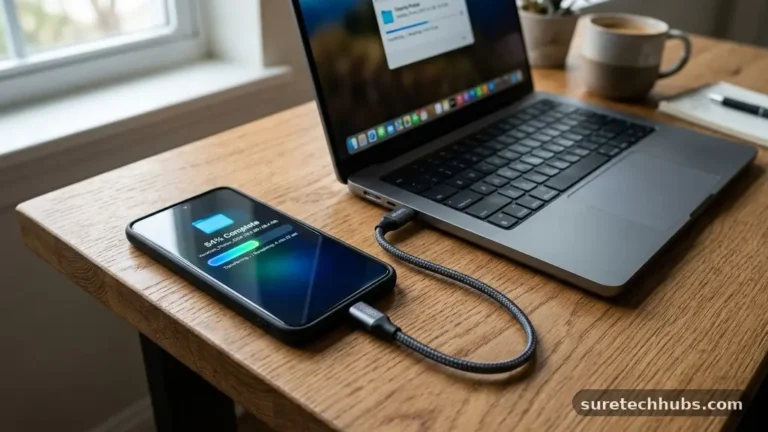
To preserve your device’s maximum capacity, avoid leaving your phone plugged into a charger overnight or at 100% for extended periods. Modern software features, such as “Optimized Battery Charging” on iOS and similar tools on Android, help manage this by pausing the charge at 80% until you are likely to wake up.
Heat is the ultimate enemy of long-term longevity. Charging your phone in a hot car or leaving it in direct sunlight can permanently reduce the number of cycles the battery can handle.
You should always charge your device in a cool, well-ventilated area to maintain its integrity. If you notice your phone becoming excessively warm during charging, consider removing any thick cases that might be trapping heat against the chassis.
Maintaining your battery health is a long-term game that requires consistent habits. You can learn more about the chemistry behind these components through resources like the Battery University technical documentation. Understanding these principles helps you realize that the goal isn’t just to make today’s charge last, but to ensure the battery remains capable of holding a full charge for years to come.
Data Comparison of Battery Saving Methods
To understand the impact of these changes, it is helpful to look at how different settings influence power consumption. While individual results vary based on your specific model and usage patterns, the following table provides a general estimate of how much power you can save by adjusting common settings.
| Setting Adjustment | Estimated Impact on Drain |
|---|---|
| Lowering screen brightness (100% to 50%) | High impact (15-25% reduction) |
| Disabling background app refresh | Medium impact (5-10% reduction) |
| Turning off location services | Medium impact (5-10% reduction) |
| Enabling dark mode on OLED screens | Low to Medium impact (5-15% reduction) |
| Restricting high refresh rate (120Hz to 60Hz) | High impact (10-20% reduction) |
These estimates show that focusing on the display and radio-heavy processes provides the most significant gains. Implementing just two or three of these changes can often be the difference between a phone that dies by 6:00 PM and one that lasts until you get home. It is best to experiment with these settings one by one to see which ones have the most noticeable effect on your daily workflow without sacrificing the features you actually use.
Frequently Asked Questions
Does closing all my background apps really save battery?
Actually, in many cases, force-closing apps can consume more energy. When you restart an app, the phone must reload the entire program into memory, which requires more processing power than simply keeping it in a suspended state. You should only force-close apps that are frozen or behaving erratically.
Is it better to charge my phone to 80% or 100%?
For the absolute best long-term battery health, keeping your charge between 20% and 80% is ideal. Lithium-ion batteries experience the most stress when they are at their maximum or minimum voltage levels. However, do not stress too much about this; modern phones have protection circuits that prevent the battery from actually hitting 0% or 100% of its total chemical capacity.
Should I keep power saving mode on all the time?
It is generally not recommended to keep power saving mode on constantly. These modes often disable background syncing for email and messaging apps, which can lead to delayed notifications. Only turn it on when you know you will be away from a charger for a long duration or when your battery level drops below a certain point.
Does using a dark theme actually save energy?
Yes, if your phone has an OLED or AMOLED screen, using a dark theme can significantly improve battery life. Because OLED screens turn off individual pixels to display black, they consume zero power for those areas. On LCD screens, however, the backlight remains on regardless of the color, so the effect is negligible.
How can I tell if my battery is physically failing?
If your phone shuts down randomly even when the battery indicator shows a significant charge, or if the device feels warm to the touch even when idle, the internal cell may be failing. Most modern smartphones have a “Battery Health” menu in their settings that displays a percentage representing the maximum capacity relative to when it was new. If this number is below 80%, you may notice a significant decrease in daily performance.
Conclusion
Optimizing your smartphone battery settings that can improve battery life is a process of balancing performance with efficiency. By focusing on display brightness, managing background app activity, and being mindful of your charging habits, you can extend the usefulness of your device significantly. It is not about turning your phone into a brick, but rather about tuning it to fit your specific needs.
Start by auditing your apps and adjusting your screen settings tonight. You will likely notice a measurable improvement in how long your device stays powered throughout the day.
Taking these small, deliberate steps ensures that your technology serves you, rather than the other way around. Consistency is the key to maintaining a healthy device for the long haul.