How to Create a Simple Digital Backup Strategy for Your Files
Setting up a reliable method for protecting your digital life is easier than most people assume. By creating a Simple Digital Backup Strategy for Your Files, you ensure that precious photos, important documents, and work projects remain safe even if your primary hardware fails. You don’t need a degree in computer science to safeguard your information against accidental deletion or hardware malfunctions.
This approach relies on consistent habits and basic tools that provide peace of mind without requiring constant manual intervention. By following a few fundamental rules, you can protect your digital footprint effectively and affordably.
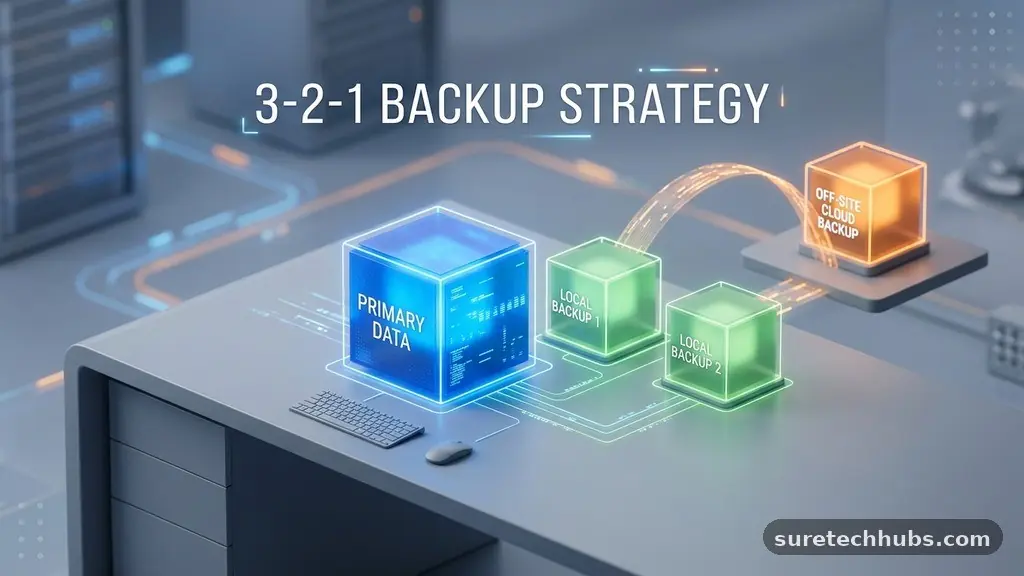
The most effective way to start is by adopting the 3-2-1 rule, which is the industry standard for data protection. This principle requires you to keep three total copies of your data, stored on two different types of media, with one copy kept off-site. For most users, this means keeping your original files on your computer, a second copy on an external drive, and a third copy in a secure cloud service.
This redundancy protects you against local disasters like fire, theft, or a sudden device failure. If you lose access to one copy, you always have two others to rely on for recovery.
Understanding the 3-2-1 Backup Philosophy
The 3-2-1 rule isn’t just for large corporations; it’s a perfect framework for individual users. The “three” refers to the total number of copies, which includes your primary working files.
If you lose your laptop, you have already lost one copy, but the two backups remain intact. This simple math creates a safety net that prevents a single point of failure from destroying your digital history.
The “two” refers to storing these files on different types of hardware. Relying solely on two different folders on the same internal hard drive is dangerous because if the drive dies, both copies are gone.
You should always use distinct storage mediums, such as a portable SSD, a thumb drive, or a network-attached storage device. This physical separation ensures that a mechanical failure in one device doesn’t automatically ruin your backup.
The “one” represents the off-site requirement, which is critical for disaster recovery. If your home experiences a fire or a flood, having all your backups in the same desk drawer won’t help you.
Cloud storage services provide this off-site layer by keeping your data in a secure, remote data center. This ensures that even if you lose everything physically, your files are recoverable from the internet.
Choosing Your Hardware and Cloud Services
Selecting the right tools is the next step in creating a Simple Digital Backup Strategy for Your Files. You don’t need expensive enterprise-grade hardware to get started with a professional-level setup.
A standard external hard drive or a solid-state drive (SSD) is usually sufficient for most home users. SSDs are generally faster and more durable than traditional spinning hard drives, making them excellent for frequent backups.
Cloud services have become incredibly user-friendly and often offer automated sync features. Services like Google Drive, iCloud, or OneDrive allow you to designate folders that will automatically upload to the cloud whenever you are connected to the internet.
This set-it-and-forget-it approach is vital because it removes the temptation to skip your backup routine. You should choose a provider that integrates well with your existing operating system.
When deciding on a budget for your storage, consider the total size of the data you need to protect. Most people can start with a 1TB or 2TB external drive, which is often enough for years of documents and photos.
Cloud storage plans usually start with a free tier, and upgrading to a larger capacity typically costs a few dollars per month. Investing in this small monthly fee is significantly cheaper than professional data recovery services.
Automating the Backup Process
Manual backups are rarely successful over the long term because human beings are prone to forgetting. Automation is the secret ingredient that keeps your data secure without requiring daily effort.
Operating systems now include built-in tools that handle this task efficiently. For example, macOS users have access to Time Machine, which creates incremental backups of your entire system.
Windows users can utilize the built-in File History tool to achieve similar results. You can configure these tools to run in the background, ensuring that every time you save a file, a copy is moved to your external drive.
If you prefer a more hands-off approach, third-party software can schedule these tasks to happen while you sleep. The key is to ensure the backup software is always running when the drive is plugged in.
You should also verify that your cloud synchronization is active and healthy. Check your desktop app periodically to ensure that it isn’t showing any sync errors or connection issues.
If you notice the software has stopped, simply restarting the application or checking your internet connection usually resolves the problem. Automation removes the cognitive load of remembering to back up, turning security into a background process.
Protecting Against Ransomware and Security Threats
Digital security is a growing concern, and your backup strategy is your primary defense against a ransomware attack. Ransomware works by encrypting your files and demanding payment to unlock them, rendering your local machine useless.
If your backup drive is permanently plugged into your computer, the malware can often encrypt your backup files as well. This is why it is essential to have an “air-gapped” or offline backup.
Periodically disconnecting your external drive after a backup provides a physical barrier against digital intruders. If your computer becomes compromised, your disconnected drive remains safe from the malware spreading through your system.
Cloud services also provide a layer of protection through version history. Most major cloud providers allow you to roll back your files to a previous state if they were encrypted by a malicious actor.
Maintaining strong security practices is just as important as the backup itself. Use unique, complex passwords for your cloud accounts and enable two-factor authentication whenever possible.
This prevents unauthorized access to your cloud storage and ensures that your off-site files remain private. Security and backup go hand-in-hand, as a secure backup is only useful if it isn’t compromised along with your primary data.
Comparing Storage Solutions
The choice of storage medium depends on your specific needs for speed, cost, and mobility. Each option has distinct advantages that cater to different types of files and usage habits. The following table compares common storage methods to help you decide which fits your workflow best.
| Storage Type | Best Use Case | Primary Benefit |
|---|---|---|
| External SSD | Frequent backups | High speed and durability |
| Cloud Storage | Off-site protection | Accessible from anywhere |
| NAS Device | Multi-user households | Large capacity and internal network |
| USB Flash Drive | Small, critical files | Extremely portable |
Each of these options serves a unique role in your overall strategy. You might use an SSD for your daily, heavy-duty backups while relying on cloud storage for critical documents that you need access to while traveling.
The goal isn’t to pick just one, but to use a combination that covers all your bases. Mixing these technologies creates a robust architecture that is difficult to break.
Maintaining Your Backup Strategy
Creating a strategy is only the first half of the battle; maintaining it ensures your data remains recoverable. Technology evolves, and storage hardware eventually wears out.
You should perform a “test restore” at least once or twice a year to ensure your files are actually there. Simply plugging in your drive and opening a few random files can confirm that the system is working as expected.
Keep a list of what you are backing up so you don’t miss important folders. Sometimes, users focus on photos but forget to back up their browser bookmarks, email archives, or application settings.
A simple checklist can help you stay organized and ensure no critical information is left behind. You can update this list every time you add a new project or significant collection of files to your computer.
* Check your backup drive for physical damage or loose cables.
* Update your backup software to the latest version to ensure compatibility.
* Verify that your cloud subscription is active and has enough storage.
* Perform a test restore of a random file to verify data integrity.
* Update your password for cloud services annually to prevent unauthorized access.
By reviewing your setup periodically, you catch potential issues before they become permanent data loss. If you notice your drive is starting to make strange noises or the software is reporting read errors, replace the hardware immediately. Being proactive with hardware maintenance is far more effective than trying to recover data from a dead drive.
Frequently Asked Questions
How often should I update my backups?
You should aim to update your backups as frequently as your work changes. For most people, automated tools that sync in real-time or daily are ideal. If you are working on a project that changes multiple times a day, real-time cloud syncing is the most reliable method.
What if I don’t have enough money for a cloud subscription?
If a paid cloud plan isn’t in your budget, you can use the free tiers provided by various services to store your most critical documents. Alternatively, you can use two separate external drives and store one at a friend’s house or a secure location away from your home. This manually fulfills the “off-site” requirement of the 3-2-1 rule without a monthly fee.
Is it safe to store my personal files in the cloud?
Cloud services use advanced encryption to protect your data during transfer and while stored on their servers. As long as you use a strong, unique password and enable two-factor authentication, your files are generally more secure in a professional data center than they are on an unencrypted laptop. Always review the privacy policy of the service provider you choose.
What is the difference between syncing and backing up?
Syncing, like what happens with Dropbox or Google Drive, mirrors your files across devices, meaning if you delete a file on your computer, it disappears from the cloud too. A true backup tool creates a versioned copy, meaning it keeps copies of files even if you delete the original. Always ensure your “backup” solution is actually creating separate versions of your data.
Can I use my old laptop as a backup server?
Yes, you can repurpose an old computer to act as a local backup server or a NAS device. By connecting external drives to this old machine and sharing them over your home network, you can centralize your backups. This requires a bit more technical setup, but it is a great way to recycle hardware while improving your data security.
Final Thoughts on Digital Safety
Establishing a reliable system for your files provides a sense of security that is invaluable in our digital age. By following the 3-2-1 rule, automating your processes, and performing regular checks, you minimize the risk of losing your most important memories and work. Creating a Simple Digital Backup Strategy for Your Files is a small investment of time that pays off immensely when technology inevitably fails.
Start by identifying your most critical data today and setting up your first automated backup. You will find that once the system is in place, the peace of mind it provides is well worth the effort. Take the first step now to ensure your digital legacy remains protected against any future surprises.