How to Transfer Files Between Your Phone and Computer
Learning how to transfer files between your phone and computer is a fundamental skill that saves time and keeps your digital life organized. Whether you are moving high-resolution photos, important documents, or large media collections, understanding the most efficient methods ensures your data stays safe and accessible.
By mastering these techniques, you can move away from relying on slow email attachments or unreliable cloud storage syncs. This article covers the most effective ways to manage your digital assets across devices, helping you find the right balance between speed and convenience for your specific needs.
Using a USB Cable for Direct Transfers
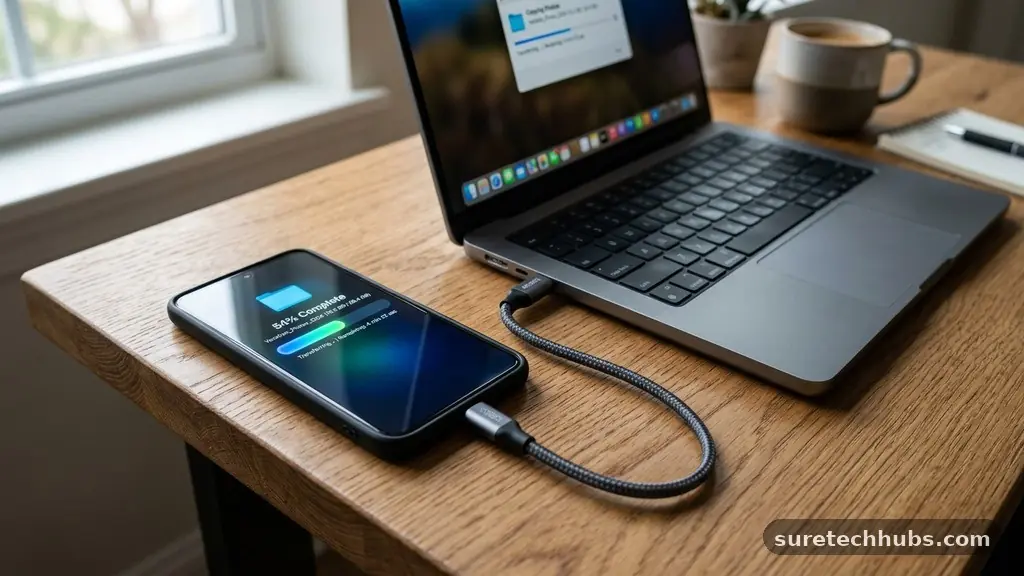
The most reliable way to handle large volumes of data is by using a physical USB cable. When you plug your phone into your computer, the operating system treats it like an external hard drive or a digital camera. This direct connection bypasses the need for internet bandwidth, making it ideal for moving gigabytes of video or thousands of photos at once.
To start, connect your phone to your computer using a high-quality data cable. You will often see a prompt on your phone screen asking you to select a mode; choose “File Transfer” or “MTP” (Media Transfer Protocol) to allow the computer to see your storage.
If you are using a Windows machine, the phone will typically appear in your File Explorer under “This PC.” From there, you can browse your internal storage, locate your DCIM folder for photos, or find downloads in the dedicated folder.
One major advantage here is that you don’t need any special software to move files. Once the connection is established, the transfer speed depends entirely on the hardware, such as the USB 3.0 or 3.2 standard of your cable and ports.
If you encounter issues, try using the original cable that came with your phone, as many third-party charging cables do not support data transfer. You can find more information about USB power and data standards to ensure your hardware is capable of high-speed connections.
Cloud Storage Services for Wireless Syncing
Cloud storage is the go-to solution for people who want their files to appear on their computer without ever physically connecting their devices. Services like Google Drive, Dropbox, and OneDrive act as an intermediary, syncing data in the background whenever you have an internet connection. This method is incredibly convenient for small to medium-sized files, such as documents, PDFs, or a few recent photos.
Once you install the app on your phone and the desktop client on your computer, you simply upload your files to a specific folder. The desktop app then automatically downloads those files to your local drive.
This creates a mirrored experience where your files are always updated on both ends. It is particularly useful for workflows where you start a project on your phone and finish it on your computer.
The main limitation of cloud storage is the reliance on your internet upload and download speeds. If you are trying to sync a 10GB video file, you might spend a significant amount of time waiting for the upload to complete. Additionally, you are limited by the free storage tiers provided by these companies, which can fill up quickly if you are backing up high-resolution media.
Built-in Wireless Sharing Tools
Modern operating systems now include native tools designed specifically for moving files between devices without the need for cables or third-party cloud apps. For Android users, Quick Share is a powerful tool that allows you to beam files directly to a nearby Windows computer. It uses a combination of Bluetooth to handshake and Wi-Fi to handle the heavy lifting of the data transfer.
Apple users have long enjoyed AirDrop, which functions on a similar principle for moving data between iPhones, iPads, and Mac computers. If you are mixing platforms, such as an Android phone and a Windows PC, you might need to install a helper app provided by the manufacturer. These tools generally provide the fastest wireless transfer speeds because they create a direct peer-to-peer connection rather than routing data through a remote server.
To use these features, both devices must have Bluetooth and Wi-Fi enabled. You select the “Share” icon on your phone, choose the wireless sharing app, and wait for your computer to appear as a target device.
Once you accept the file on your computer, the transfer happens almost instantly. It is a clean, efficient way to move files without cluttering your cloud storage or hunting for a cable.
Transferring Data via Bluetooth
Bluetooth is a classic method that remains useful for small, individual files like a single photo or a contact card. While it is significantly slower than Wi-Fi-based sharing or USB cables, it is universally compatible across almost every phone and computer manufactured in the last decade. It does not require an active internet connection, making it useful in remote locations.
To initiate a transfer, you must first “pair” your phone with your computer through your system settings. Once paired, you can right-click the Bluetooth icon on your computer taskbar and select “Receive a file.”
On your phone, you select the file, choose “Share,” and then pick “Bluetooth” as the method. You will then select your computer from the list of nearby devices.
Because of the slow bandwidth, you should avoid using Bluetooth for anything other than very small files. Attempting to send a long video via Bluetooth will likely result in a failed transfer or a process that takes hours. Use this method only when you have no other options, such as when you are in an area without Wi-Fi and lack the correct USB cable.
Comparing Common Transfer Methods
Choosing the right method depends on the size of your files and the frequency of your transfers. The following table helps you compare the strengths and weaknesses of each approach to help you decide which one fits your daily workflow best.
| Method | Speed | Best For | Requirements |
|---|---|---|---|
| USB Cable | Very High | Large Videos/Backups | Cable + Port |
| Cloud Storage | Variable | Syncing Documents | Internet Connection |
| Wireless Share | High | Quick Photo/Doc Send | Wi-Fi + Bluetooth |
| Bluetooth | Low | Small Single Files | Paired Devices |
Troubleshooting Connection Issues
Sometimes, your devices simply refuse to talk to each other, which can be frustrating. The most common culprit for USB issues is a faulty cable or a loose port.
If your computer doesn’t detect your phone, try a different cable first, as many cheap cords are designed only for charging and lack the internal wiring for data. You should also check your phone’s notification shade after plugging it in to ensure the USB mode is set to “File Transfer.”
If wireless methods are failing, the issue is often related to network isolation or interference. Ensure both your phone and your computer are on the same local Wi-Fi network, as some sharing apps require this to establish a secure link. If you are using a public or work network, the security settings might block peer-to-peer communication between devices.
Finally, outdated software can prevent these features from working correctly. Always ensure your phone’s operating system is updated and that your computer’s drivers are current.
Sometimes, a simple restart of both the phone and the computer clears out temporary software glitches that prevent file detection. If you continue to struggle, try disabling your computer’s firewall temporarily to see if it is blocking the connection.
Best Practices for File Organization
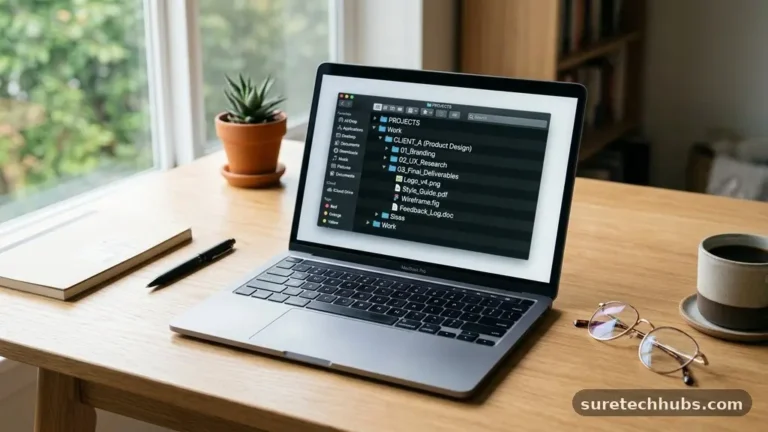
Once you master the art of moving files, you need a plan to keep them from becoming a digital mess. It is easy to dump everything into a “Downloads” folder and forget about it, but this makes finding specific items later impossible. Create a consistent folder structure on your computer that mirrors your logical categories, such as “Personal Photos,” “Work Documents,” and “Project Assets.”
Consider using a consistent naming convention for your files as well. Instead of leaving files as generic names like “IMG_1234.jpg,” rename them to something descriptive like “Vacation_2024_Beach.jpg.” This practice saves you immense amounts of time when you are searching for a specific document months or years later.
Here are a few quick tips to maintain order:
- Delete duplicate files immediately after transferring to save disk space.
- Use sub-folders by year or month to keep your photo library manageable.
- Keep a separate drive or cloud backup for your most important documents.
- Archive old, non-essential files to an external drive to keep your primary storage fast.
Frequently Asked Questions
What is the easiest way to transfer files from my phone to a PC?
For most users, using a cloud storage app like Google Drive or OneDrive is the easiest approach. It requires no cables and happens automatically in the background, making it perfect for casual users who don’t want to manage hardware connections.
Why won’t my phone transfer files to my computer?
The most likely reason is that your USB cable is a “charge-only” cable without data pins. Try using the original cable that came with your phone, or check that you have selected “File Transfer” mode on your phone screen after connecting it.
How can I send very large files quickly?
A physical USB cable is the fastest way to move large amounts of data. If you must go wireless, use a direct Wi-Fi sharing feature like Quick Share or AirDrop, which uses local network speed rather than your internet bandwidth.
Do I need an app to transfer files?
Not always, but apps can make the process easier. Windows and macOS have built-in file explorers that handle USB connections natively, and wireless tools are often built into the OS, but third-party cloud apps often provide a more user-friendly interface.
Conclusion
Mastering the process of transferring files between your phone and computer empowers you to take full control of your digital workspace. By choosing the right method—whether it’s the raw speed of a USB cable for large backups or the effortless convenience of cloud syncing for daily documents—you can eliminate the friction in your workflow. We recommend starting with a simple cloud setup for your smaller files and keeping a high-quality USB cable handy for those times when you need to move large media collections.
Feel free to experiment with the different wireless tools available on your devices to see which one works best for your specific setup. Once you find the method that feels most natural to you, managing your data will become a seamless part of your routine. Keep your files organized, stay updated, and enjoy the freedom that comes with knowing exactly how to move your information wherever you need it to go.