How to Troubleshoot Common Internet Connection Problems
Learning the nuances of troubleshooting common internet connection problems can save you hours of frustration when your digital life suddenly grinds to a halt. Whether you are working from home, streaming your favorite content, or simply trying to load a webpage, a stable connection is essential for modern productivity.
By understanding the underlying mechanics of your network hardware and software, you can often resolve these disruptions without waiting for a technician. This article covers the practical steps to diagnose and fix connectivity issues, ensuring you can restore your online access as quickly as possible.
Perform a Physical Hardware Check
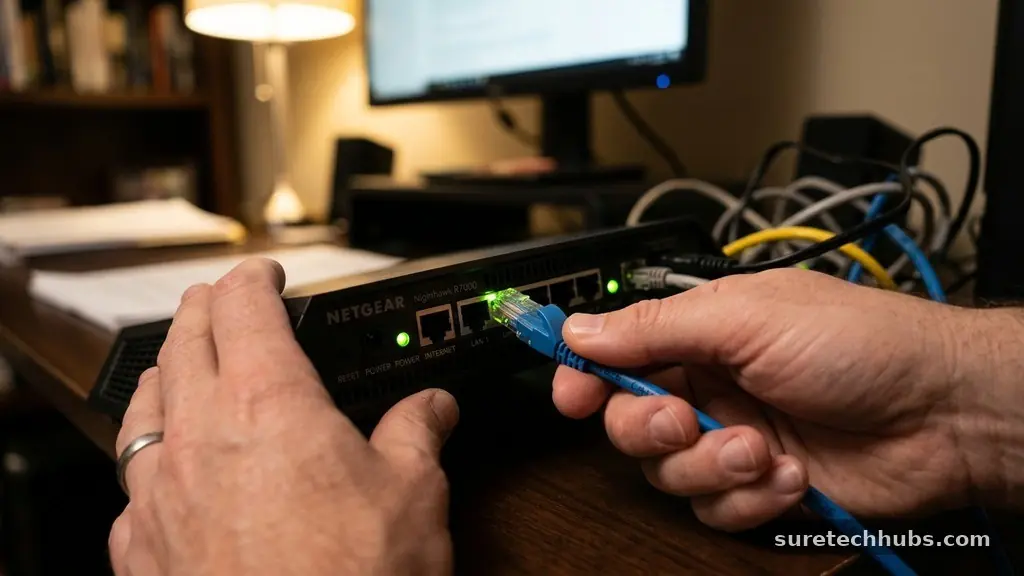
Most connectivity failures begin with a simple physical oversight rather than a complex software bug. Start by inspecting your router, modem, and all connected cables to ensure everything is receiving power.
A loose Ethernet cable or a slightly unplugged power adapter is a surprisingly frequent culprit. You should verify that the indicator lights on your modem are displaying a solid, typically green or white, signal rather than a flashing amber or red light.
If you find that your cables are securely seated, the next step is to perform a classic power cycle of your equipment. Unplug the power cords from both your modem and your router, letting them sit completely powered down for at least thirty seconds.
This brief pause allows the capacitors in the hardware to discharge fully and clears the temporary memory, or cache, that might be storing corrupted configuration data. Plug the modem back in first, waiting for it to establish a stable connection with your internet service provider before reconnecting the router.
Identifying Cable Damage
Physical damage to your network infrastructure can cause intermittent connectivity that is notoriously difficult to track. Inspect the length of your Ethernet cables for any visible fraying, kinks, or signs of animal chewing.
Even a small internal break in the copper wiring can lead to packet loss, which manifests as sluggish performance or sudden disconnects. If you rely on coaxial cables for your modem, ensure the connector is screwed on tightly; a loose connection at the wall plate often degrades signal quality significantly.
Analyze Your Wi-Fi Signal Strength
When troubleshooting common internet connection problems, the distance between your device and your router frequently plays a major role. Wi-Fi signals operate on radio frequencies that are easily obstructed by walls, large furniture, and even metal appliances.
If you notice that your connection is strong in one room but drops off entirely in another, you are likely dealing with a range issue rather than a service outage. You can check the signal strength by looking at the bars on your device’s interface, but these are often just rough estimates.
For a more precise look at your coverage, consider using a network analyzer app on your smartphone to map dead zones in your home. These tools provide a visual representation of signal intensity across your living space.
If you find that the signal is weak in critical areas, you might need to reposition your router to a more central, elevated location. Avoid placing the router inside a cabinet or behind a television, as these act as physical barriers that dampen your wireless reach.
Examine Your Device Settings
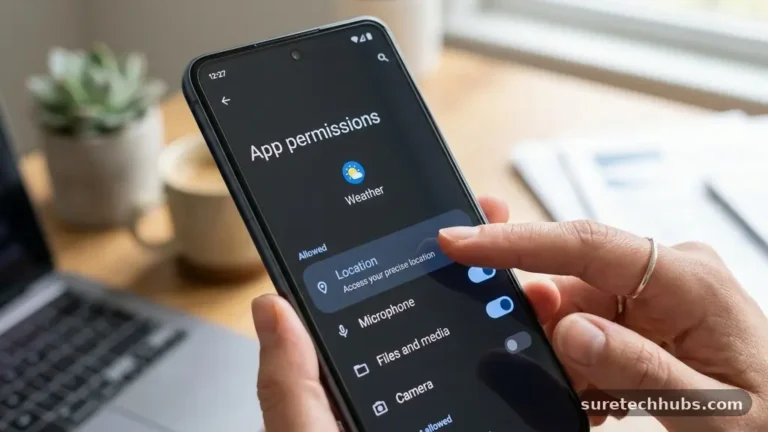
Sometimes the issue isn’t with the network infrastructure, but with the specific device you are using to access the internet. A common mistake is accidentally toggling your device into Airplane Mode, which disables all wireless radios, including Wi-Fi.
You should also verify that your device is attempting to connect to the correct network name, or SSID. It is easy to inadvertently connect to a neighbor’s unsecured signal or a secondary guest network that lacks proper internet access.
If you remain connected to the correct network but still cannot browse the web, try toggling your Wi-Fi settings off and then back on. This action forces your device to renegotiate its handshake with the router, often clearing up minor IP address conflicts.
On Windows or macOS, you can also use the built-in network diagnostic tools to automatically reset your network adapter. These tools perform a series of checks on your configuration and can often resolve issues related to outdated drivers or incorrect DNS settings.
Compare Connection Types and Speeds
It is helpful to distinguish between a total loss of internet and a simple slowdown in speed. If you are experiencing slow loading times, you might be hitting the bandwidth limits of your current plan.
You can use a reputable site like Speedtest by Ookla to measure your current download and upload speeds. Comparing these numbers to your service provider’s promised rates gives you a concrete baseline for your performance.
Data Comparison Table
| Connection Type | Typical Speed Range | Common Issues |
|---|---|---|
| Fiber Optic | 300 Mbps – 1 Gbps | Rare, usually provider-side |
| Cable Internet | 100 Mbps – 500 Mbps | Congestion during peak hours |
| DSL | 5 Mbps – 50 Mbps | Distance from exchange node |
| Satellite | 10 Mbps – 100 Mbps | Latency and weather interference |
Address IP and DNS Conflicts
A common, invisible cause of connectivity issues involves your computer’s IP address and DNS server settings. Your router acts as a DHCP server, automatically assigning a unique address to every device on your network.
Occasionally, two devices may attempt to claim the same address, leading to a conflict that prevents both from accessing the internet. A simple restart of the device usually forces it to request a fresh, valid IP address from the router.
DNS, or Domain Name System, is the phonebook of the internet that translates human-readable web addresses into numeric IP addresses. If your ISP’s DNS servers are down or sluggish, you will be unable to load websites even if your physical connection is fine.
You can often fix this by manually changing your device settings to use a public DNS provider like Google DNS or Cloudflare. This simple change frequently results in faster page load times and more reliable connectivity across all your home devices.
Update Router Firmware
Your router requires internal software known as firmware to manage the complex traffic of your home network. Manufacturers periodically release updates to patch security vulnerabilities and improve the overall stability of the hardware.
If your router is running an outdated version, it may struggle with newer devices or modern web protocols, leading to frequent drops. You can usually access your router’s management dashboard by typing its default gateway address into your web browser.
Once logged in, look for a section labeled “Firmware Update” or “System Maintenance.” Many modern routers offer an “Auto-Update” feature that you should always leave enabled.
If you have an older device, you may need to download the update file from the manufacturer’s website and upload it manually. While this process might seem intimidating, it is a crucial step in maintaining a reliable network and protecting your connected devices from external threats.
When to Contact Your ISP
There are times when the problem clearly lies outside your home, regardless of how much troubleshooting you perform. If you have power-cycled your hardware, checked your cables, and verified your device settings, the issue is likely with your service provider.
Before calling, check your provider’s status page or their official social media accounts for reports of widespread outages in your area. You can also ask neighbors who use the same service if they are currently experiencing similar difficulties.
If you must call customer support, be prepared to provide them with the steps you have already taken. Clearly stating that you have already restarted the modem and checked the physical connections will save you from repeating basic scripts.
Keep your account number handy and ask for a ticket number if the issue requires a technician to visit your home. Having a record of your conversation is helpful if the problem persists and you need to request a billing credit for the downtime.
Frequently Asked Questions
Why does my Wi-Fi say connected but no internet?
This usually indicates that your device has successfully talked to your router, but the router itself cannot reach the outside world. This can be caused by a service outage, an expired account with your ISP, or a configuration error in the modem.
How often should I restart my router?
You do not need to restart your router daily, but doing so once or twice a month can help clear out memory leaks. If you notice your connection getting sluggish over time, a quick reboot is often the easiest fix.
Can malware cause internet connection problems?
Yes, certain types of malware can hijack your browser settings or modify your DNS configuration to intercept traffic. If you suspect your device is infected, running a full scan with reputable security software is a recommended step in your troubleshooting process.
Does the number of connected devices affect my speed?
Every device connected to your network consumes a portion of your available bandwidth, even when idle. If you have dozens of smart home devices, gaming consoles, and computers active at once, it can lead to congestion and perceived instability.
What is the difference between 2.4GHz and 5GHz Wi-Fi?
The 2.4GHz band has a longer range and better wall penetration but is prone to interference from household appliances. The 5GHz band offers much faster speeds and less congestion, but it does not travel as far through solid obstacles.
Restoring Your Digital Routine
Troubleshooting common internet connection problems is a skill that becomes easier with practice and patience. By systematically checking your hardware, your device settings, and your network configuration, you can resolve the vast majority of connectivity issues on your own. Remember that technology is inherently complex, and occasional hiccups are a normal part of maintaining a modern home network.
If you follow the steps outlined here, you will likely find that most disruptions are temporary and easily managed. Keep your router firmware updated and your cables tidy to minimize future frustrations.
When you do encounter a persistent problem, do not hesitate to reach out to your provider with the details you have gathered. Taking a proactive approach ensures that your connection stays as strong and reliable as possible.