How to Check Whether a Downloaded File Is Safe
Learning the best methods for checking whether a downloaded file is safe is an essential skill for anyone who spends time on the internet. Whether you are grabbing a new piece of software or just saving a document from an email, the risk of encountering malicious code is always present.
By taking a few proactive steps before you run any executable, you can protect your operating system and your personal data from unwanted intrusions. This article provides a practical, step-by-step breakdown of how to verify your digital environment and ensure that the items you bring onto your computer are secure and trustworthy.
The Immediate Solution: Use VirusTotal
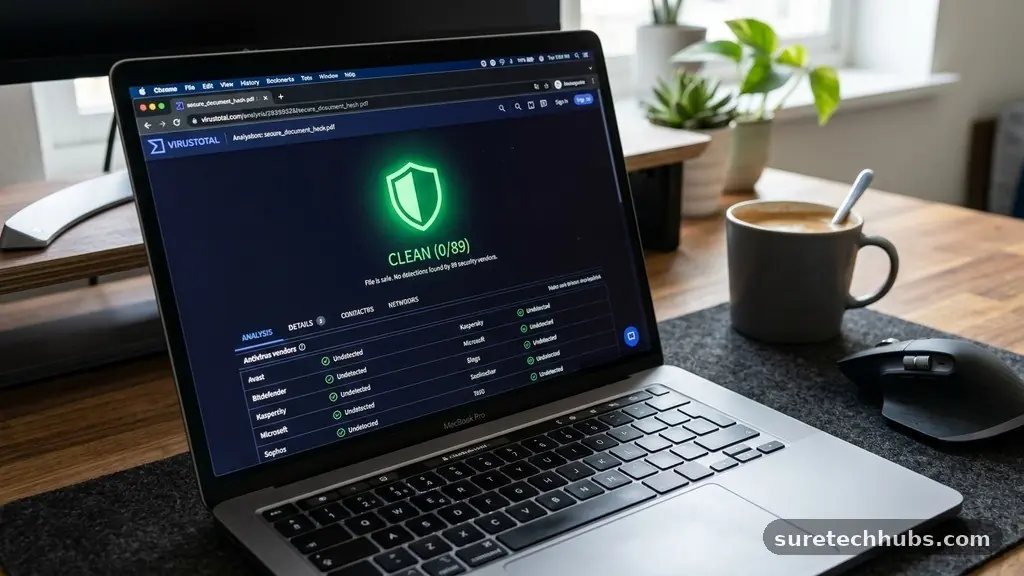
The fastest way to confirm the safety of any file you have just saved is to use a multi-engine scanning service. The most widely recognized tool for this purpose is VirusTotal, which aggregates data from over 70 different antivirus scanners simultaneously.
When you upload a file here, the service runs it against various databases to see if any security vendor has flagged it as suspicious. If even one or two engines report a detection, you should treat the file as a potential threat.
You do not need to install anything to use this service, as it operates entirely through your web browser. Simply navigate to their homepage, select the file from your local drive, and wait for the results to populate. If you see a sea of green checkmarks, the file is likely clean.
If you see red warnings, delete the file immediately and empty your trash. This method is far more effective than relying on a single antivirus program, as different vendors update their threat definitions at different speeds.
Verifying Digital Signatures
Most professional software developers sign their files with a digital certificate to prove authenticity. When you download an installer, your operating system can check this signature to confirm that the file hasn’t been tampered with since it was created.
To check this on Windows, you can right-click the file and select Properties. Look for a tab labeled Digital Signatures; if the list is empty or the signer is unknown, exercise extreme caution.
If a signature is present, click on the “Details” button to view the certificate information. You want to see a valid timestamp and a verified organization name.
If the operating system displays a warning that the certificate is expired or revoked, do not proceed with the installation. Malware creators rarely bother to obtain valid, expensive digital certificates, so a missing or invalid signature is a major red flag that indicates the file might be malicious.
Understanding File Extensions
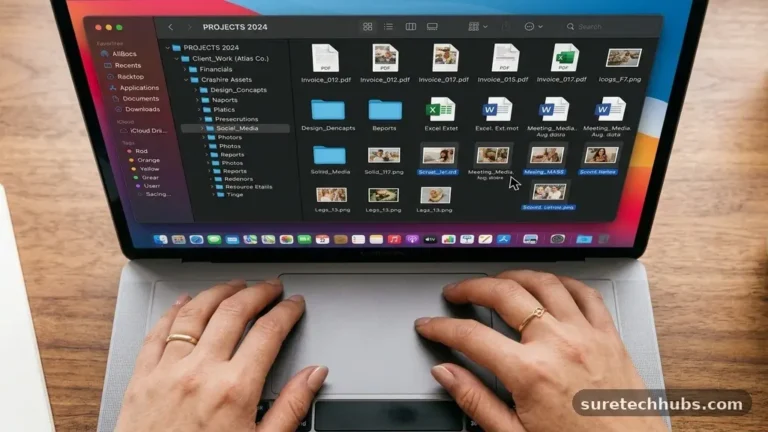
A common trick used by attackers is to mask the true nature of a file by manipulating its extension. You might see a file named “Invoice.pdf.exe,” where the user only notices the “PDF” part of the name.
By default, many systems hide file extensions for known file types, which makes it easy to be deceived. You should always configure your file explorer to show full file extensions so you can see exactly what kind of object you are dealing with.
Executable files like .exe, .msi, .bat, and .scr are the most common carriers of malware. Be especially wary of these files if you were expecting a document or a media file.
If you download a supposed image file that turns out to be an .exe, delete it without opening it. Always double-check the file type before you run anything, as this simple habit prevents the vast majority of accidental infections.
Comparing File Hashes
Every file has a unique digital fingerprint known as a hash, often generated using algorithms like SHA-256. When you download a legitimate piece of software from a reputable source, the website often provides this hash value next to the download link.
You can generate the hash of the file you downloaded and compare it to the value provided on the developer’s site. If the two strings of characters do not match perfectly, the file has been altered.
| Feature | Why It Matters |
|---|---|
| Digital Signature | Confirms the developer’s identity |
| File Hash | Detects if the file was modified |
| Extension Check | Reveals the actual file type |
| Sandbox Analysis | Allows safe execution in isolation |
This technique is highly reliable for ensuring that the installer hasn’t been intercepted or corrupted during the transfer process. If the hash does not match, you should discard the file and try downloading it again from a different mirror or directly from the official source. While it sounds technical, most modern operating systems have built-in utilities to check hashes, making this a very accessible security measure for any user.
Using a Sandbox Environment
If you are unsure about a file but absolutely need to run it, a sandbox is your best defense. A sandbox acts like a virtual, isolated container that separates the application from your main operating system.
If the file contains malware, it will only infect the virtual environment, which you can wipe clean once you are finished. Windows 10 and 11 feature a built-in tool called Windows Sandbox that you can enable through your control panel.
Running a suspicious file inside a sandbox allows you to observe its behavior without risking your primary data. If the program behaves normally and doesn’t trigger any security alerts, you can have more confidence in its safety.
However, if the program tries to modify system files or reach out to strange servers, you know immediately that it is malicious. This is an advanced technique, but it is incredibly effective for testing software from less-than-certain sources.
Evaluating Website Reputation
The reputation of the website you are using is often as important as the file itself. Official developer sites are generally safe, but third-party download portals can be hotbeds for bundled software and unwanted installers. Before you click the download button, look for indicators of a professional site.
Does it use HTTPS? Is the design clean, or is it covered in misleading ads that say “Download” in big, blinking letters?
If a site forces you to use its own custom download manager, leave immediately. Legitimate software is almost always distributed as a direct download or through a well-known store like the Microsoft Store.
If you are ever in doubt, search for the software name and the term “scam” or “malware” to see if other users have reported negative experiences. Trusting your intuition about a website’s layout and professionalism can save you from a lot of trouble.
Maintaining Updated Security Software
Your primary antivirus software should always be active and up to date. While it is not a perfect solution, it acts as a secondary layer of defense if you accidentally ignore other warning signs.
Most modern security suites will perform a real-time scan the moment a file hits your hard drive. If the file is known to be dangerous, the software will quarantine it before you have a chance to run it.
Remember that antivirus software is not infallible, which is why you shouldn’t rely on it as your only check. It works best when combined with your own vigilance.
Keep your operating system updated as well, as these updates often include patches for vulnerabilities that malware might try to exploit. A combination of updated software and cautious habits creates a much stronger barrier than either approach could provide on its own.
Frequently Asked Questions
What should I do if my antivirus finds a threat after I downloaded a file?
If your security software flags a file, you should immediately follow the program’s recommendation to quarantine or delete it. Do not attempt to override the warning or “run anyway.” Once the file is removed, run a full system scan to ensure that nothing else was affected by the interaction.
Are files from email attachments more dangerous than website downloads?
Email attachments can be highly dangerous because they are often disguised as invoices, shipping receipts, or personal messages to trick you into opening them. You should never open an attachment from an unknown sender, and you should always be skeptical of attachments from known contacts if they seem out of character.
Does changing a file extension make it safe?
No, changing an extension like .exe to .txt does not make a file safe. The underlying code remains exactly the same, and if you change it back or try to execute it, the malware will still function. Never assume that renaming a file changes its malicious potential.
Can I trust files if I downloaded them from a peer-to-peer network?
You should treat files from peer-to-peer networks with extreme caution. These platforms are common sources of pirated or modified content that often contain hidden payloads. Unless you are an expert at vetting files, it is generally best to avoid these sources entirely.
How do I know if my system is already infected?
Common signs of an infection include sudden performance drops, strange pop-up windows, your browser homepage changing unexpectedly, or your security software suddenly disabling itself. If you notice these symptoms, disconnect from the internet and run a deep scan with a reputable security tool.
Checking whether a downloaded file is safe is a vital part of maintaining a healthy digital life. By following these steps, you can drastically reduce your risk and stay in control of your machine. Start by using online scanners, verify digital signatures whenever possible, and always watch for suspicious file extensions.
These habits might seem small, but they form a powerful defense against the threats you might encounter online. Take the time to be thorough before you run any new software, and you will find that your browsing experience becomes much more secure. Always remember that your own caution is the most powerful tool you have for keeping your data and your system running smoothly.