How to Manage App Permissions on Android Phones
Learning how to manage app permissions on Android phones gives you direct control over your digital privacy. By deciding exactly what information each application can access, you prevent unnecessary data collection and improve your device‘s security.
This process is straightforward once you know where to look, allowing you to tailor your phone‘s behavior to your specific comfort level. Mastering these controls ensures that only the tools you trust have access to your private information.
Accessing Your Permission Settings
To begin managing app permissions on Android phones, you need to open your device’s main settings menu. Most users find this by swiping down from the top of the screen and tapping the gear-shaped icon.
Once inside the settings, look for the section labeled “Apps” or “Apps & Notifications.” This area acts as the primary hub for every program installed on your hardware.
Inside the app management screen, you will see a list of all your installed software. Selecting an individual app will reveal a sub-menu containing specific details about that piece of software.
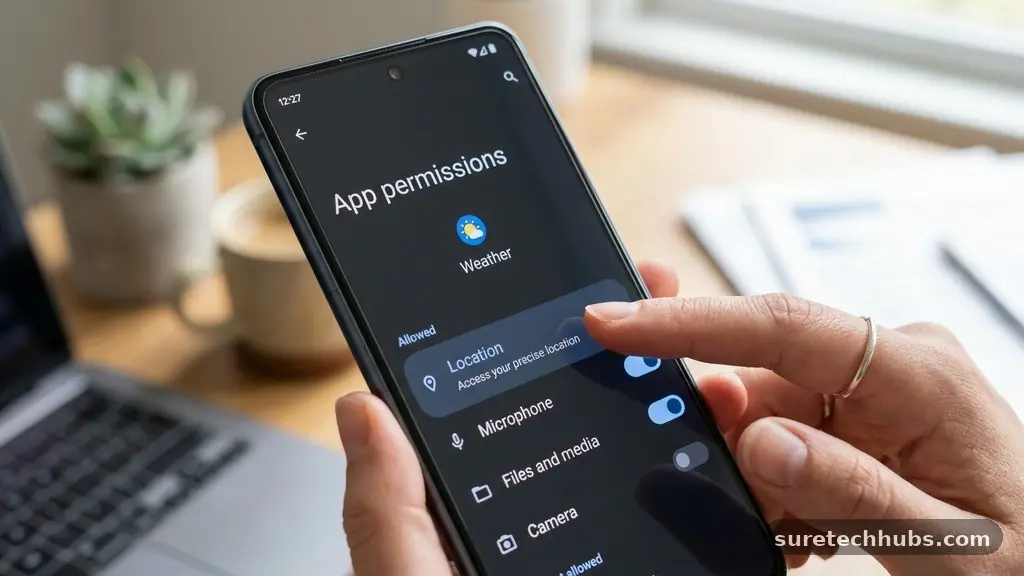
Look for a category titled “Permissions.” Tapping this option displays a list of all the different functions the app is currently requesting or has been granted access to use.
You can also view permissions by category rather than by individual app. From the main “Privacy” or “App Permissions” menu in your system settings, you will see groups like “Camera,” “Microphone,” and “Location.”
Selecting one of these categories reveals every app currently authorized to use that specific feature. This view is incredibly helpful if you want to perform a quick audit of which programs are using sensitive sensors.
Understanding Different Permission Types
Android categorizes access requests to help you understand what data is being shared. Some permissions are considered “Runtime” permissions, meaning the app asks for your approval while you are actively using a feature.
For example, a camera app will prompt you for access the first time you attempt to take a photo. You can choose to grant or deny this request immediately.
Other permissions are categorized as “Special App Access.” These are powerful controls that can affect the entire device, such as the ability to display content over other apps or modify system settings.
You should be extremely cautious when granting these specific requests. Only give this level of control to apps you fully trust and understand.
| Permission Type | Common Use Case | Privacy Risk |
|---|---|---|
| Location | Mapping and Navigation | High (Tracks your physical movements) |
| Microphone | Voice commands or recording | High (Captures ambient audio) |
| Camera | Taking photos or video calls | High (Access to visual environment) |
| Contacts | Syncing phone numbers for messaging | Medium (Reveals your social network) |
Understanding these distinctions helps you make informed choices. If a simple calculator app asks for access to your contacts or location, you should immediately deny that request. Developers sometimes include unnecessary features that require broad permissions, so always question why an app needs to see your data.
Removing Access for Unused Apps
Over time, your phone accumulates dozens of programs that you might not use regularly. These dormant apps often retain permissions granted months or years ago.
Regularly auditing your device ensures that these background tools aren’t silently accessing your location or microphone. You can find more information on how these security structures work through the official Android help documentation.
When you decide to revoke access, simply tap the app in your settings and navigate to the permissions list. You will typically see options like “Allow,” “Ask every time,” or “Don’t allow.”
Selecting “Don’t allow” immediately cuts off the app’s ability to trigger that specific hardware sensor. The change takes effect instantly without requiring a device restart.
Consider creating a monthly habit of reviewing your list. If you see an app you no longer recognize, it is usually safer to uninstall it completely.
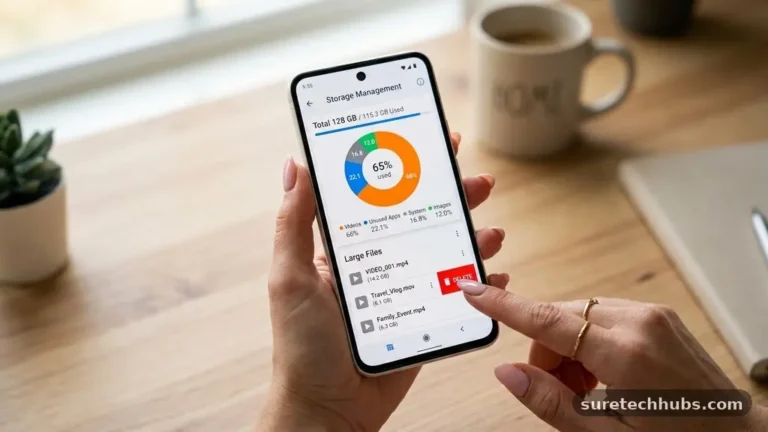
Removing unused software is the most effective way to protect your personal data. It also frees up storage space and can improve overall battery life by preventing background activity.
Managing Location Data Specifically
Location services are among the most sensitive permissions on any smartphone. Many apps request location access to provide “personalized” ads or local weather updates, but this data can reveal where you live, work, and spend your free time. Modern Android versions offer granular control, allowing you to grant access only “While using the app.”
This setting is a powerful compromise for many users. If you select this option, the app loses the ability to track your position the moment you close it or switch to a different screen.
You can also choose to provide “Approximate” location instead of “Precise” location. This keeps the app functional for regional weather reports without giving it your exact street address.
Take a moment to check your “Location” category in the settings menu. You might be surprised to see which apps have been tracking you in the background.
If you do not need a specific app to know where you are, strip that permission away immediately. Your phone will continue to function perfectly for essential tasks while your privacy remains intact.
Handling Sensitive Hardware Sensors
Microphone and camera permissions require the highest level of vigilance. While these are necessary for video calls and voice assistants, they are also the most invasive sensors on your device. Android now includes visual indicators, usually a small green dot, that appear in the corner of your screen whenever an app is actively using the camera or microphone.
If you see this indicator and you aren’t currently using a feature that requires it, investigate immediately. Navigate to your app permissions and check which software has been granted access.
It is often safer to set these permissions to “Ask every time” rather than “Allow all the time.” This forces the app to prompt you, ensuring you are aware of every instance your hardware is being engaged.
Remember that you are the final authority on your device. Just because an app requests a permission during installation does not mean you are obligated to accept it.
Most apps will continue to function even if you deny non-essential requests. Test your apps after changing permissions; if they crash, you can always go back and grant access later.
Best Practices for App Security
Maintaining a secure device goes beyond just flicking toggles in a menu. Always be wary of the source of your applications.
Downloading software from the official Google Play Store is safer because Google performs automated security scans on uploaded files. Avoid “sideloading” apps from unofficial websites, as these files often bypass standard permission checks and may contain malicious code.
Keep your operating system updated at all times. Manufacturers frequently release patches that change how permissions are handled or fix vulnerabilities that allowed apps to bypass security controls.
Check your system update section regularly to ensure you are running the latest software version. Staying current is one of the easiest ways to keep your data private.
- Review permissions for all newly installed apps immediately.
- Disable location access for apps that don’t strictly require it.
- Uninstall apps you haven’t opened in more than 30 days.
- Use the “Ask every time” setting for sensitive sensors.
- Keep your Android system software updated to the latest version.
These simple habits create a strong defense against data leakage. By being proactive, you ensure that your personal information stays on your device where it belongs. The goal is to make your phone a tool that serves you, rather than a device that feeds data to third-party servers.
Frequently Asked Questions
What happens if I deny a permission an app requests?
In most cases, the app will simply function without that specific feature. For example, if you deny a photo-editing app access to your contacts, it will still let you edit photos, but it won’t be able to suggest contacts for sharing. Occasionally, an app might stop working or crash if the denied permission is essential to its core function.
Why do some apps ask for permissions they don’t seem to need?
Some developers include broad permission requests to simplify their coding process or to collect data for advertising networks. Always be skeptical of apps that ask for access to your location, contacts, or microphone when those features aren’t relevant to the app’s primary purpose. It is perfectly acceptable to deny these requests and see if the app still works.
Can I turn off permissions for all apps at once?
Android does not provide a single “master switch” to turn off all permissions for every app at once. This is intentional, as doing so would likely break most of your phone’s functionality, including basic features like making calls or sending texts. You must manage these settings on an app-by-app or category-by-category basis to maintain system stability.
How do I know if an app is abusing my permissions?
Watch for the privacy indicators, such as the colored dots in the status bar, which show when your camera or microphone is active. Additionally, check your battery usage statistics; if an app is using a significant amount of power in the background, it may be constantly accessing your location or other sensors. If you suspect an app is acting suspiciously, remove it from your device.
Does resetting app preferences help with permission issues?
If you have accidentally changed too many settings and an app is no longer working correctly, you can reset all app preferences. This action will reset all disabled apps, notification restrictions, and background data restrictions to their default states. You can find this option in the “Apps” or “Reset Options” menu, though be aware it will require you to re-configure your preferences for many apps.
Maintaining Your Digital Privacy
Managing App Permissions on Android phones is a continuous process rather than a one-time task. As you install new software and update your existing tools, your privacy needs will naturally shift.
Staying informed about what your device is doing is the best way to safeguard your personal details against unauthorized access. You now have the knowledge to audit your apps, restrict sensitive sensors, and keep your data secure.
Take a few minutes today to look through your settings and see which programs have access to your location or microphone. Revoking unnecessary permissions provides peace of mind and keeps your device running efficiently. If you ever feel uncertain about an app’s behavior, do not hesitate to remove it.
Your digital autonomy is worth the extra effort required to maintain these controls. Feel free to explore your system settings and customize your experience to fit your personal comfort levels.