How to Back Up Important Files Before a Computer Upgrade
Backing up important files before a computer upgrade is the single most effective way to ensure your transition to new hardware remains stress-free and productive. Many people assume that modern operating systems move everything automatically, but relying on that assumption is a recipe for losing precious photos, work documents, and custom settings.
By taking control of your data migration now, you avoid the panic of discovering a missing folder or a corrupted configuration after the old machine is wiped. This process protects your digital history while setting the stage for a clean, organized start on your new device.
Determining What Needs to Be Saved
The first step in securing your data is identifying exactly what matters most to your daily life and professional workflow. Most users focus exclusively on their Documents or Desktop folders, but modern computing involves data spread across many different locations.
You should look beyond basic text files and consider your browser bookmarks, email archives, and locally saved application data. If you use specialized software like accounting programs or creative suites, check their specific file export requirements before you start the migration.
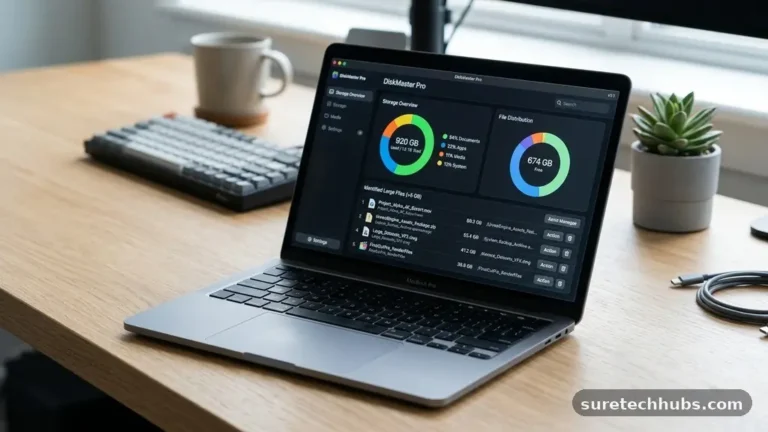
Start by auditing your primary storage drive to see where your largest files live. Many people keep massive media libraries in non-standard folders or hidden directories that traditional backup tools might overlook.
You should verify that your browser profile—which contains saved passwords and extensions—is synchronized to a cloud account or exported manually. Don’t forget to check your downloads folder, as many users habitually store important temporary files there that they eventually decide to keep long-term.
It is also helpful to make a list of your installed software and current system settings. While you cannot “back up” a program in the traditional sense, you can save license keys, configuration files, and serial numbers.
If you use a custom desktop theme or specific keyboard shortcuts, take screenshots or write down those settings so you can replicate them later. Creating a simple inventory list will save you hours of troubleshooting once you begin setting up the new machine.
Using Cloud Synchronization Services
Cloud storage has transformed the way we handle data, making the process of moving information between devices significantly easier. Services like OneDrive are deeply integrated into modern operating systems, allowing you to sync your core folders directly to the cloud.
When you sign in with your Microsoft account on a new computer, these files often appear automatically, saving you the trouble of manual transfers. However, you must verify that your folders are actually selected for synchronization before you assume they are safely in the cloud.
To check your status, look at the cloud icon in your system tray or taskbar settings. You will see which folders are currently being backed up and if the storage limit has been exceeded. If you have more data than your free tier allows, you might need to purchase temporary storage or move files to a physical drive.
Remember that cloud syncing is not the same as a permanent archive; it is a live mirror of your current system state. If you accidentally delete a file on your old computer, the sync service will often delete it from the cloud as well.
External Hardware for Local Backups
While cloud services are convenient, a physical external drive remains the gold standard for a complete, offline backup. External drives provide a massive amount of storage for a relatively low one-time cost, and they allow you to keep a copy of your data that is entirely independent of the internet.
This is particularly important for large video projects, high-resolution photo collections, or massive database files that might take days to upload to a cloud provider. You can find detailed technical advice on managing storage media through the National Institute of Standards and Technology guidelines for data integrity.
When choosing a drive, ensure it has enough capacity to hold your entire system drive with room to spare. If your current computer has a 500GB drive, a 1TB external drive is a safe choice that allows for future growth.
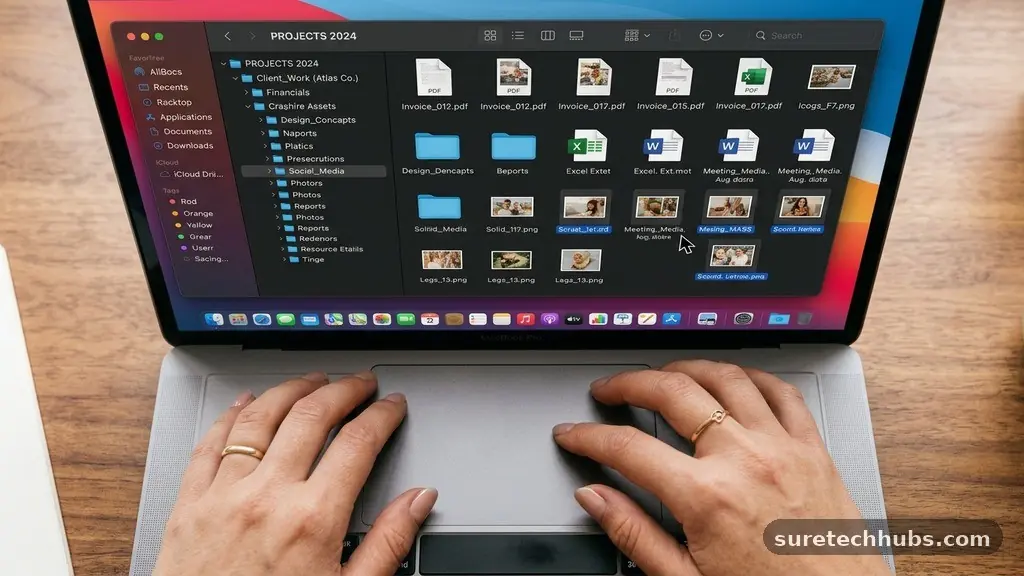
Once you plug the drive in, you can use built-in tools like File History or third-party imaging software to create a comprehensive snapshot. This method is faster than dragging and dropping individual files, and it captures the directory structure exactly as it exists on your source machine.
Comparing Data Migration Methods
Different strategies serve different needs depending on how much data you have and your level of technical comfort. Some users prefer a manual approach, while others rely on automated software to handle the heavy lifting. The following table provides a quick overview of how these methods compare in terms of speed, cost, and complexity.
| Method | Best For | Pros | Cons |
|---|---|---|---|
| Cloud Sync | Small files/Documents | Automatic, accessible anywhere | Requires internet, limited space |
| External HDD/SSD | Large media libraries | Fast, offline, permanent | Physical hardware to carry |
| Disk Imaging | Full system recovery | Exact clone of the OS | Requires technical skill |
| Network Transfer | Office/Home networks | No external drive needed | Can be slow over Wi-Fi |
Managing Browser and Application Data
Browsers have become the primary interface for most of our digital tasks, yet they are often forgotten during a system migration. Your browser stores more than just history; it holds your saved credit cards, addresses, and complex session configurations.
Most modern browsers allow you to sign in to a profile to sync this information, which is the most reliable way to move your data to a new computer. If you do not wish to sync to a cloud, look for the “Export Data” option in your browser settings to generate a portable file.
Applications often store their custom settings in hidden system folders, such as the AppData directory in Windows. If you have spent time customizing a workspace or configuring a complex plugin, you might need to copy these folders manually.
Start by searching for your application name followed by the word “configuration” or “settings” to see where the files are stored. Copying these files to your external drive ensures that when you reinstall the software, you can simply drop them back into the new folder to restore your previous workflow.
Executing the Final Backup Process
Before you commit to the upgrade, you should perform a “dry run” of your backup process to ensure everything is readable. Simply copying a file is not enough; you must verify that the file actually opens on the destination drive.
Try opening a few random documents and photos from your external drive on a different computer or a separate user account. This simple verification step prevents the heartbreak of discovering that your backup files were corrupted or incompletely copied.
Once you are satisfied with the verification, perform one final sync immediately before you wipe the old machine. If you have been working on a project during the backup process, those changes might not be captured in your initial scan.
Ensure that your email client has been synced or that your local .pst or .ost files have been backed up. It is often helpful to keep the old computer running for a few days after the new one is set up, just in case you realize you missed a specific folder or file during the transition.
Handling System Settings and Accounts
Modern operating systems rely heavily on accounts to manage your digital identity and preferences. Ensure you have your login credentials, recovery codes, and multi-factor authentication methods ready before you move to the new hardware.
If you use an authenticator app, make sure you have backed up your codes or transferred the account to a new device. Being locked out of your own accounts is a common hurdle that can turn a simple computer upgrade into a week-long ordeal.
You should also review your system settings to see what can be easily replicated on the new machine. Things like mouse sensitivity, display scaling, and privacy preferences are usually set manually, but noting them down makes the setup process feel much more familiar.
If you have custom scripts or system paths that your software depends on, document those clearly. Keeping a physical notebook or a simple text file with these details will make your new computer feel like home within minutes of turning it on.
Frequently Asked Questions
Do I need to back up everything before upgrading to a new operating system?
While modern upgrades are designed to be non-destructive, there is always a risk of system failure or data corruption. Creating a full backup is the only way to guarantee that you won’t lose your personal data if the upgrade process encounters a critical error.
Does Windows Backup transfer everything to a new computer?
Windows Backup is excellent for syncing your OneDrive files, system settings, and browser preferences, but it does not always capture every application-specific configuration. It is best to supplement this tool with a manual backup of your most critical work folders and specialized software data.
What is the most reliable way to back up my files?
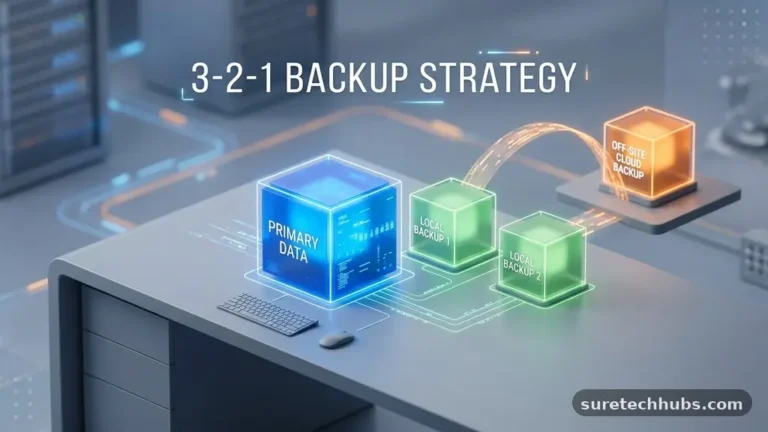
The most reliable strategy is the “3-2-1” rule: keep three copies of your data, on two different types of media, with one copy stored off-site. For a computer upgrade, this means having your files on the original computer, an external hard drive, and a cloud storage service.
How do I know if my folders are being synced to the cloud?
You can check your sync status by opening the settings menu of your cloud provider, such as OneDrive or Google Drive. Look for a section labeled “Manage Backup” or “Sync Folders” to see a list of directories that are currently being actively monitored and uploaded to the cloud.
Can I just copy the Program Files folder to move my software?
No, you cannot simply copy the Program Files folder to move software to a new machine. Programs require registry entries and system dependencies that are created during the installation process, so you must reinstall your software from scratch on the new computer.
Ensuring a Smooth Transition
Backing up important files before a computer upgrade is a deliberate act of preparation that pays dividends in peace of mind. By taking the time to audit your data, choose the right migration tools, and verify your backups, you ensure that your transition remains a positive experience. Remember that data loss is almost always preventable with a little foresight and a consistent approach to file management.
As you move forward, keep your backup drives updated and continue to utilize cloud services for your most essential work. With your digital assets secured, you are free to enjoy the speed and efficiency of your new hardware without looking back.