Essential Browser Features That Can Make Web Browsing Easier
Discovering the right tools within your software can fundamentally change how you interact with the internet every day. Many users stick to default settings, missing out on essential Browser Features That Can Make Web Browsing Easier, such as advanced tab management and privacy controls. By tweaking these hidden settings, you can save hours of time and significantly reduce digital clutter.
Whether you are a professional researcher or a casual reader, understanding these capabilities will transform your online experience. This article breaks down the most effective ways to optimize your digital workspace for speed, security, and personal efficiency.
Mastering Tab Management for Better Workflow
Managing dozens of open tabs is a common struggle for modern web users. When your browser bar becomes a chaotic mess of tiny, unreadable icons, your productivity inevitably suffers.
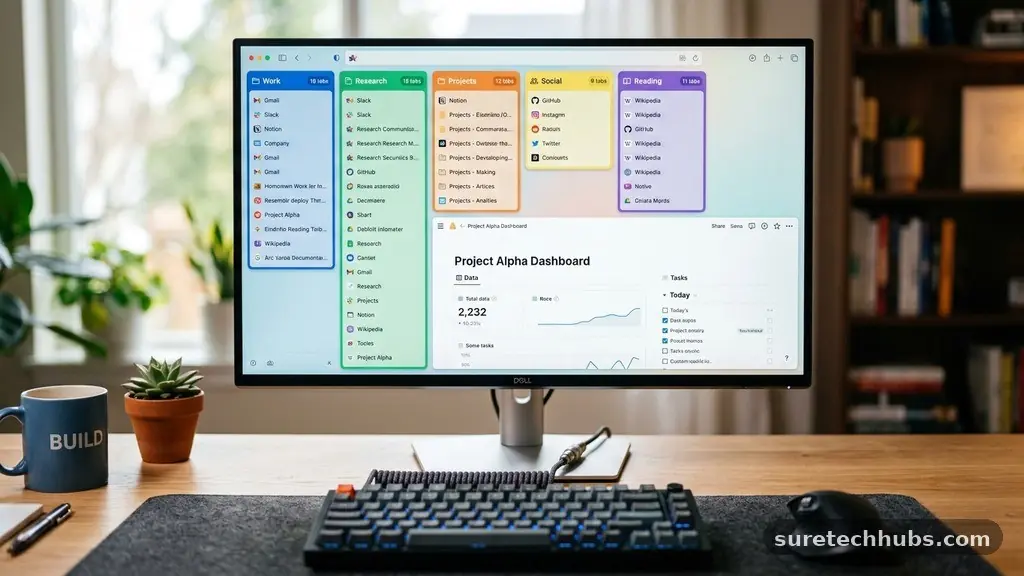
Modern browsers have introduced vertical tab bars and tab grouping to address this exact issue. These tools allow you to categorize your sessions by project, keeping your workspace clean and focused.
Vertical tabs are particularly useful for those using widescreen monitors. By moving your tabs to the side of the screen, you gain more horizontal space for reading articles or viewing complex data sets.
This layout makes it easier to see the full title of each page, preventing the need to hover over icons to identify them. It is a simple shift in perspective that yields immediate results for daily navigation.
Tab grouping functions act as virtual folders for your open pages. You can right-click any tab and assign it to a group, which can then be collapsed to hide multiple pages from view instantly.
This is ideal for research tasks where you might have ten articles open on a single topic. When you are done with that project, you can hide the entire group, clearing your screen without closing the research you might need later.
Leveraging Built-in Privacy and Security Tools
Security is no longer just about installing third-party antivirus software; it starts right inside your browser. Most browsers now include robust tracking protection that blocks third-party cookies and scripts designed to follow your online movements.
Enabling “Strict” or “Enhanced” tracking protection in your privacy settings can prevent advertisers from building a detailed profile of your habits. This also often leads to faster page load times because the browser stops fetching unnecessary tracking data.
Password managers are another staple of a secure browsing experience. Instead of reusing the same weak password across multiple sites, let your browser generate and store complex, unique credentials for every account.
These managers are encrypted and synced across your devices, ensuring you never have to remember a long string of characters again. If you prefer more control, you can check your browser’s security dashboard regularly to see if any of your saved passwords have appeared in known data breaches.
Customizing Your Experience with Extensions
Extensions are the primary way to add functionality that isn’t included out of the box. While it is tempting to install dozens of add-ons, a minimalist approach is usually better for system performance.
Focus on tools that solve specific pain points, such as ad blockers, grammar checkers, or note-taking integrations. You can find a wide range of verified tools at the Firefox Browser Add-ons store to enhance your setup.
When selecting extensions, always verify the developer and check user reviews for reports of performance issues. Too many active extensions can slow down your startup time and consume significant memory.
Audit your list every few months to remove tools you no longer use. This maintenance keeps your browser lean and responsive, ensuring that the extensions you do rely on work exactly as intended.
The Efficiency of Keyboard Shortcuts
Keyboard shortcuts are the secret weapon of power users who want to move through the web at high speed. Rather than constantly reaching for your mouse to click back, refresh, or close a window, these keystrokes save precious seconds.
Learning just five or six core commands can change your entire interaction with the interface. Most shortcuts are standardized across major browsers, making them easy to learn and retain.
For example, using “Ctrl+T” or “Cmd+T” to open a new tab is a reflex that saves hundreds of clicks over a week. If you accidentally close a tab you needed, “Ctrl+Shift+T” or “Cmd+Shift+T” will instantly restore it.
Knowing how to jump between tabs using “Ctrl+Tab” helps you navigate through complex workflows without ever leaving the keyboard. These small habits compound, making your daily browsing feel significantly more fluid and less mechanical.
Optimizing Performance for Older Hardware
If your computer feels sluggish while browsing, the issue is often memory management rather than your hardware itself. Browsers can consume a massive amount of RAM when many tabs are active simultaneously.
Most modern browsers now feature “Memory Saver” or “Efficiency Mode” settings to combat this. These features automatically suspend inactive tabs, freeing up system resources for the page you are currently using.
You can also improve performance by managing your cache and site data periodically. While the cache helps pages load faster, it can become bloated over time, occasionally leading to glitches or outdated content display.
Clearing your temporary files once a month can resolve strange rendering issues and keep the browser running smoothly. It is a proactive step that ensures you aren’t fighting against your own software during critical tasks.
Comparing Common Browser Features
Different browsers cater to different user needs, but most share a core set of features that contribute to a superior experience. The following table highlights how specific capabilities compare across common platforms.
| Feature | Chrome | Firefox | Safari |
|---|---|---|---|
| Tab Grouping | Native | Via Extension | Tab Groups |
| Privacy Shield | Standard | Enhanced | Intelligent |
| Password Sync | Google Account | Firefox Account | iCloud Keychain |
| Reader Mode | Limited | Excellent | Built-in |
Each browser offers unique advantages based on your ecosystem. For instance, Safari is optimized heavily for macOS, providing significant battery life benefits for Apple users.
Firefox is often preferred by those prioritizing open-source tools and granular privacy settings. Choosing the right browser is the first step in applying these essential Browser Features That Can Make Web Browsing Easier to your daily life.
Improving Accessibility and Reading Comfort
The web is full of distractions, from flashing advertisements to cluttered sidebars. Reader Mode is one of the most effective ways to strip away the noise and focus purely on the text.
This feature reformats a webpage into a clean, book-like layout, allowing you to adjust font size, background color, and line spacing. It is particularly helpful for users who need larger text or high-contrast backgrounds for comfortable reading.
Beyond Reader Mode, many browsers now offer built-in accessibility tools like voice-to-text input and screen reader compatibility. These features ensure that the web remains open to everyone, regardless of their physical abilities.
You can often customize these settings in the “Accessibility” section of your browser’s preferences. Taking the time to configure these options makes the internet a much more welcoming and usable space for everyone.
Frequently Asked Questions
Are these features available on mobile browsers?
Many of these tools, such as tab grouping and password management, are available on mobile versions of Chrome, Firefox, and Safari. However, some advanced features like certain extensions may be limited or unavailable on mobile platforms due to operating system constraints.
Do these changes affect my browsing speed?
Most of these features are designed to improve speed. Using memory management settings and ad-blocking extensions generally makes pages load faster by reducing the amount of unnecessary data your browser has to process.
How do I know if an extension is safe to use?
Always stick to official browser stores like the Chrome Web Store or the Firefox Add-ons site. Check the number of users, the developer’s reputation, and the most recent update date to gauge whether an extension is well-maintained and trustworthy.
Why does my browser take up so much memory?
Browsers treat each tab as a separate process to improve stability, which requires significant RAM. If you have many tabs open, enabling “Memory Saver” or “Efficiency Mode” in your browser’s settings will help mitigate this high consumption.
Is it better to use one browser for everything?
Using one browser allows for better synchronization of your history, bookmarks, and passwords across all your devices. However, some users prefer to keep work and personal browsing separate by using two different browsers, which can help maintain a healthy digital boundary.
Final Thoughts on Browser Optimization
Taking control of your digital environment is an investment in your own efficiency. By exploring the various settings and tools available, you move from being a passive user to an active architect of your online experience. Whether it is grouping your tabs to stay organized or using built-in privacy tools to protect your data, these adjustments create a safer and more enjoyable web.
Start by implementing just two or three of these changes this week to see how they impact your workflow. If you have any favorite tips for streamlining your digital life, feel free to share them as you continue to refine your setup. Mastering these essential Browser Features That Can Make Web Browsing Easier is a continuous process, so keep experimenting until you find the perfect balance for your personal needs.