How to Keep Your Smartphone Storage From Filling Up
Managing your digital life effectively starts with keeping your smartphone storage from filling up, which prevents system slowdowns and ensures your device remains responsive. When your internal memory reaches capacity, you lose the ability to capture new photos, install necessary updates, or even receive critical messages.
By taking a proactive approach to your device maintenance, you can ensure that your phone performs reliably without the constant stress of “Storage Full” notifications. Learning how to manage your digital footprint effectively allows you to reclaim space and keep your device running smoothly for years.
The most effective way to address a full device is to identify the primary culprits behind data accumulation. In most cases, the largest space-consumers are high-resolution videos, bloated application caches, and forgotten offline media downloads.
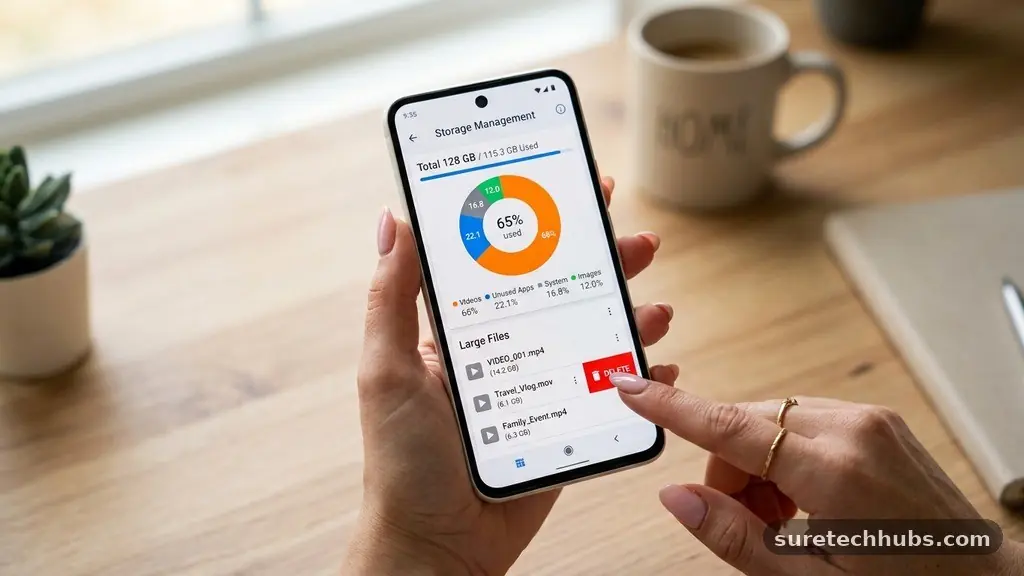
You should start by checking your system settings to see exactly which categories—such as “System,” “Apps,” or “Media”—are consuming the most space. Once you identify these heavy hitters, you can target your cleanup efforts rather than deleting files at random.
Identifying the Biggest Storage Hogs
Every smartphone operating system provides a detailed breakdown of what is occupying your internal memory. On an Android device, navigating to the “Storage” section within your settings will show you a color-coded chart of your data distribution. iPhones offer a similar feature under “iPhone Storage,” which lists every application alongside the amount of space it consumes, sorted from largest to smallest. This visibility is essential because it prevents you from wasting time deleting small text files when a single unused game could be taking up several gigabytes.
Many users find that their messaging apps are the silent killers of available space. Applications like WhatsApp or Telegram often download every photo, video, and voice note sent to you by default.
Over time, these media files accumulate into massive folders that remain hidden from your primary photo gallery. You should periodically enter the settings menu of these specific apps to clear their individual media caches and delete unnecessary conversation history.
| Category | Average Impact | Cleanup Priority |
|---|---|---|
| Video Files | High (GBs) | Immediate |
| App Cache | Medium | Monthly |
| Offline Music/Maps | Medium/High | As Needed |
| System Files | Low/Fixed | None (Avoid) |
Managing Your Photo and Video Libraries
High-definition photography and 4K video recording are the primary reasons modern smartphone storage vanishes so quickly. If you keep every accidental burst shot and blurry video, you will inevitably run out of space.
The most efficient strategy is to utilize cloud-based services that automatically back up your media and offer tools to remove the local copies. By enabling “Optimize Storage” features, your phone keeps smaller, lower-resolution versions locally while moving the full-resolution originals to the cloud.
If you prefer not to use cloud services, you must adopt a rigorous manual deletion routine. Start by using the built-in search functions in your photo app to find long videos or duplicate images that you no longer need.
Many modern phones include a “Utilities” or “Clean Up” folder that automatically detects blurry photos, screenshots, and large duplicate files for you to delete in bulk. This simple action can often recover several gigabytes of space in under a minute.
Clearing App Cache and Residual Data
Applications often store temporary data, known as cache, to help them load faster during subsequent uses. While this improves performance initially, some apps fail to clear their own cache, leading to hundreds of megabytes of junk data over time.
You can manually clear this data on many Android devices by tapping “Clear Cache” in the application info menu. On iOS, the system manages this automatically, though you may occasionally need to delete and reinstall an app that has become unusually bloated.
Streaming services are particularly notorious for leaving behind massive amounts of residual data. If you have downloaded movies or music for offline listening, these files stay on your device until you manually remove them.
Check your settings inside apps like Spotify, Netflix, or YouTube to see how much space your offline library occupies. You might be surprised to find that you are storing dozens of films you watched months ago and no longer require on your device.
Optimizing Downloads and Browser Files
Your web browser and file manager are often filled with abandoned files that serve no purpose. Every time you download a PDF, a document, or an image from the internet, it is saved to a specific downloads folder.
Most users never look in this folder again, allowing these files to sit there indefinitely. Make it a habit to check your “Downloads” folder every few weeks and delete anything you have already processed or no longer need for reference.
Browser caches also accumulate significant data as you surf the web. By visiting the settings menu of your primary browser—such as Chrome or Safari—you can clear your browsing history, cookies, and cached images.
While this might require you to log back into a few websites, it is a highly effective way to reclaim space. Keeping your browser clean also contributes to a faster, more secure mobile experience by removing outdated tracking data.
Utilizing External Storage Solutions
If you find that your lifestyle requires more data than your phone can hold, consider investing in external storage hardware. For Android users, a microSD card remains an excellent way to expand your capacity significantly for a low cost.
You can move photos, videos, and even some application data to the card, keeping your internal storage free for system updates and essential software. Always ensure you purchase a high-speed card to avoid lag when playing back media.
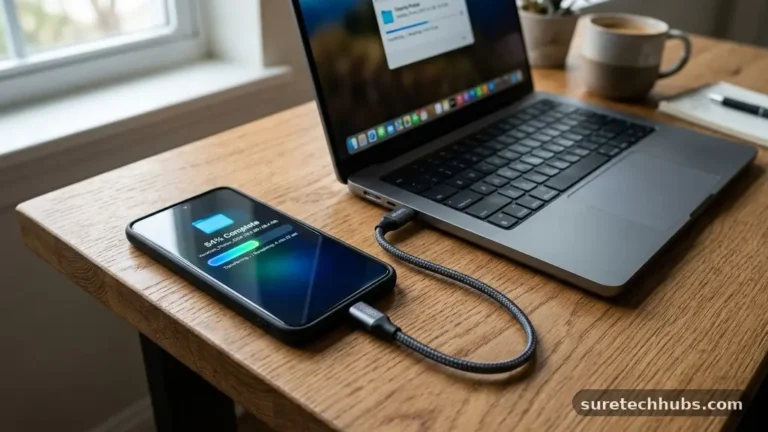
For those who use devices without expandable storage, external flash drives with Lightning or USB-C connectors offer a practical workaround. These devices plug directly into your charging port, allowing you to move large files off your phone instantly.
This is a perfect solution for backing up vacation videos or large document archives without relying on internet-based cloud services. You can learn more about managing file types and data integrity by visiting the National Institute of Standards and Technology for guidance on digital media preservation.
Automating Your Digital Hygiene
The secret to long-term success is making maintenance a routine rather than a chore. Many modern smartphones now include “Storage Manager” or “Smart Storage” features that can be set to automatically delete photos and videos that have been backed up to the cloud after a set period.
Enabling these automated tools means you never have to worry about your storage threshold again. Set these features to run in the background so your device stays optimized without requiring your constant attention.
You can also set a recurring reminder on your calendar for a “digital clean-up day.” Once a month, take ten minutes to review your most used apps and delete the ones that have lost their utility.
This prevents “app creep,” where you accumulate software you downloaded for a single purpose and then forgot about. Keeping your app library lean is one of the most effective ways to keep your smartphone storage from filling up and ensure your device remains fast.
Common Questions About Storage Management
Why is my storage full even after I delete photos?
Often, your device keeps deleted photos in a “Recently Deleted” folder for 30 days to protect against accidental loss. You must empty this folder manually to actually reclaim the space on your internal drive.
What takes up the most space on my phone?
For most users, high-resolution videos and photo libraries are the largest consumers of space. Applications, especially social media and streaming apps with large local caches, follow closely behind.
How do I free up space without deleting important files?
The best approach is to offload your data to a cloud storage service or an external drive. This allows you to remove the local copies from your phone while keeping the files accessible whenever you need them.
Should I delete my system files to save space?
No, you should never attempt to delete system files or partitions. These are essential for the operation of your smartphone, and removing them can cause your device to crash or stop functioning entirely.
Does clearing my app cache delete my account information?
Clearing the cache only removes temporary files used to speed up the app; it generally does not delete your login credentials or personal profile data. However, clearing “app data” usually resets the app to its original, fresh-install state.
Maintaining Your Digital Space
Keeping your smartphone storage from filling up is fundamentally about habits rather than just technology. By routinely auditing your media, clearing out temporary cache files, and utilizing cloud or external storage, you can stop the cycle of storage anxiety. These small, consistent actions ensure that your phone is always ready to capture the next moment without a warning prompt interrupting your flow.
Consistency is the key to managing your digital life effectively over the long term. If you make it a habit to review your files monthly, you will never face a critical storage crisis again.
Start by identifying your largest data categories today, and take the first step toward a cleaner, faster device. Your phone will reward your efforts with improved responsiveness and the freedom to keep creating and connecting without limitations.